
Mary Jane Knows manual
Mary Jane Knows checks the flower at the stores you choose, compares it with what you like and tells you which one to buy. This manual walks through every screen, in order: from installing the app to using it every day.
The screenshots come from demo data: the profile, the stores and the journal are made up.
This manual also comes inside the app: open it from any screen with F1 or the ? button at the top.
1. What Mary Jane Knows is
Picking flower is mostly done blind: the store says “indica”, “sativa” or “hybrid”, a THC percentage and something like “relaxing”. That says little about how it will sit with you.
Mary Jane Knows does something else. It reads the flower in your stores today, compares it with the strains you already know you like and tells you which one to buy. To compare them it uses terpenes, the compounds that give each flower its aroma, measured in labs. The app comes with an index of more than 14,000 tested strains.
What it does
- Checks your stores. You choose where you buy: dispensaries and online stores. The app reads only the flower, no pre-rolls, resins or moon rocks, and checks again every 6 hours (in the free version, every time you open the app).
- Tells you which one fits you and why. Every flower comes with a fit percentage and the reasons for and against: which of your strains it’s close to, whether it’s above your THC, whether it’s within your budget.
- Learns from you. When you log how a flower went, your profile adjusts. What you log weighs more than what you said at the start.
- Lets you know when a flower that fits you, or one in your library, arrives at your stores, comes back or drops in price (in the full version).
What it doesn’t do
- It isn’t medical advice. It doesn’t say which flower “cures” or “helps with” anything. It talks about aroma, chemistry and what you logged.
- It doesn’t sell anything. It has no store and takes no commission from stores. You buy where you always do.
- It doesn’t take your data. Your profile, your stores and your journal live on your computer. See Your data.
Mary and the AI
Mary is the one who talks to you in the app. The percentage for each flower is calculated by the app from lab data, always the same way and without AI.
AI is optional. If you connect it, Mary researches online the strains that have no lab data and explains each flower in more detail. Without AI the app still recommends. See Connect the AI.
The app is only for adults, in places where cannabis is legal.
2. Install and open
There are installers for Mac, Windows and Linux.
The tray
When you close the window, the app doesn’t quit: it stays in the system tray (on Mac, in the menu bar at the top) and keeps checking your stores. If something that fits you arrives, it lets you know. The first time this happens, a notification tells you.
The tray icon has three options:
- Open Mary Jane Knows
- Check stores now
- Quit: closes the app completely.
In Settings → Background you can turn off staying in the tray, or have it open by itself, hidden, when you log in.
3. The first time
The first time you open the app, Mary asks you a few questions to get to know you. There are 13 short steps, almost all of them one click; the top tells you which one you’re on. As you answer, Your card fills in on the right: your profile, in the color of your strains’ terpenes.
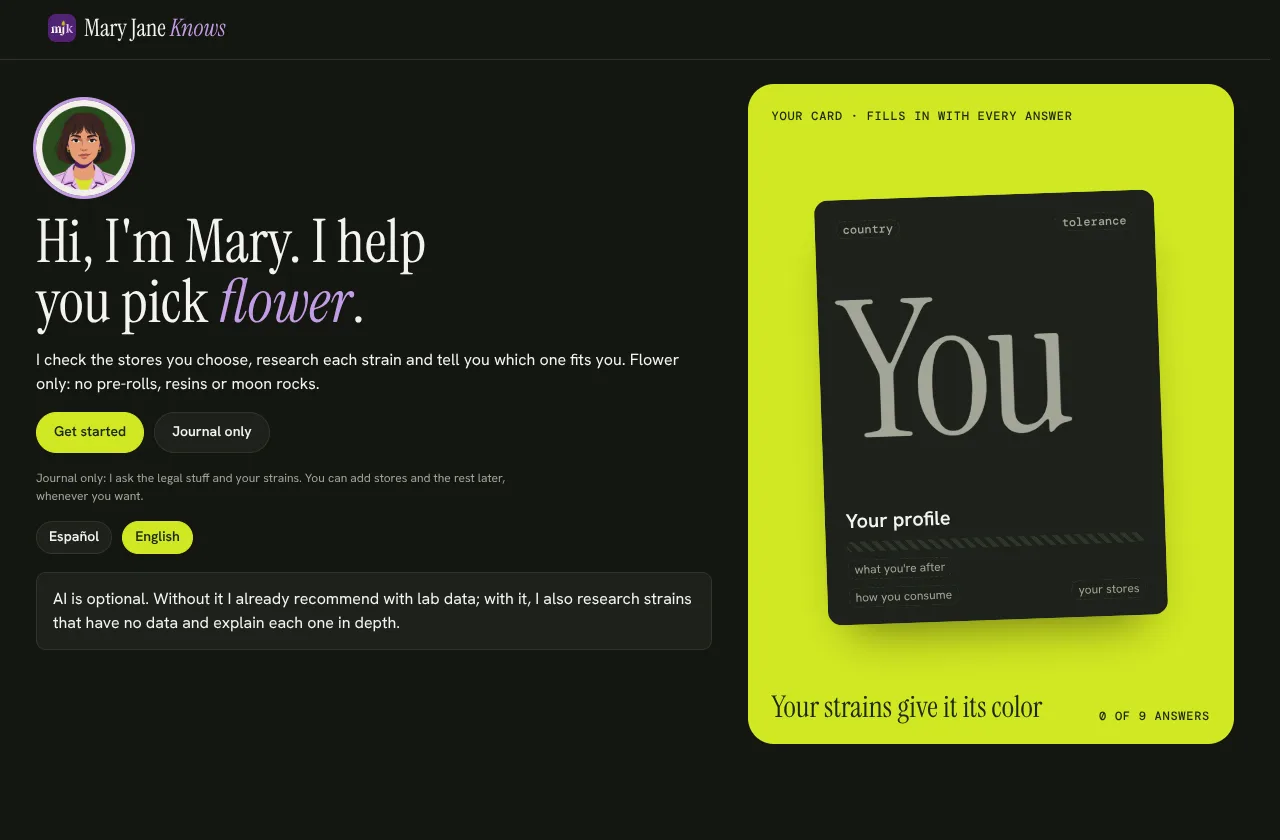
In the first step you choose the language and how to start:
- Get started: all the questions, including your stores. This gives you recommendations from day one.
- Journal only: only the legal part and your strains. It’s for logging what you try; you add stores and the rest later.
The steps
- Before we start. Your country, Mexico or the United States (it sets the currency and the minimum age: 18 or 21), that you’re of age and cannabis is legal where you live, and that you understand this isn’t medical advice.
- Your license. If you bought the app, paste your license (it starts with
MJK1). If not, choose I don’t have one: you get 14 days of the full version to try it. See Free, trial and license. - Your experience. How often you consume and your tolerance.
- How do you consume? Click to choose your methods and again to mark your main one ★. If you vaporize, Mary pays more attention to aroma than to THC.
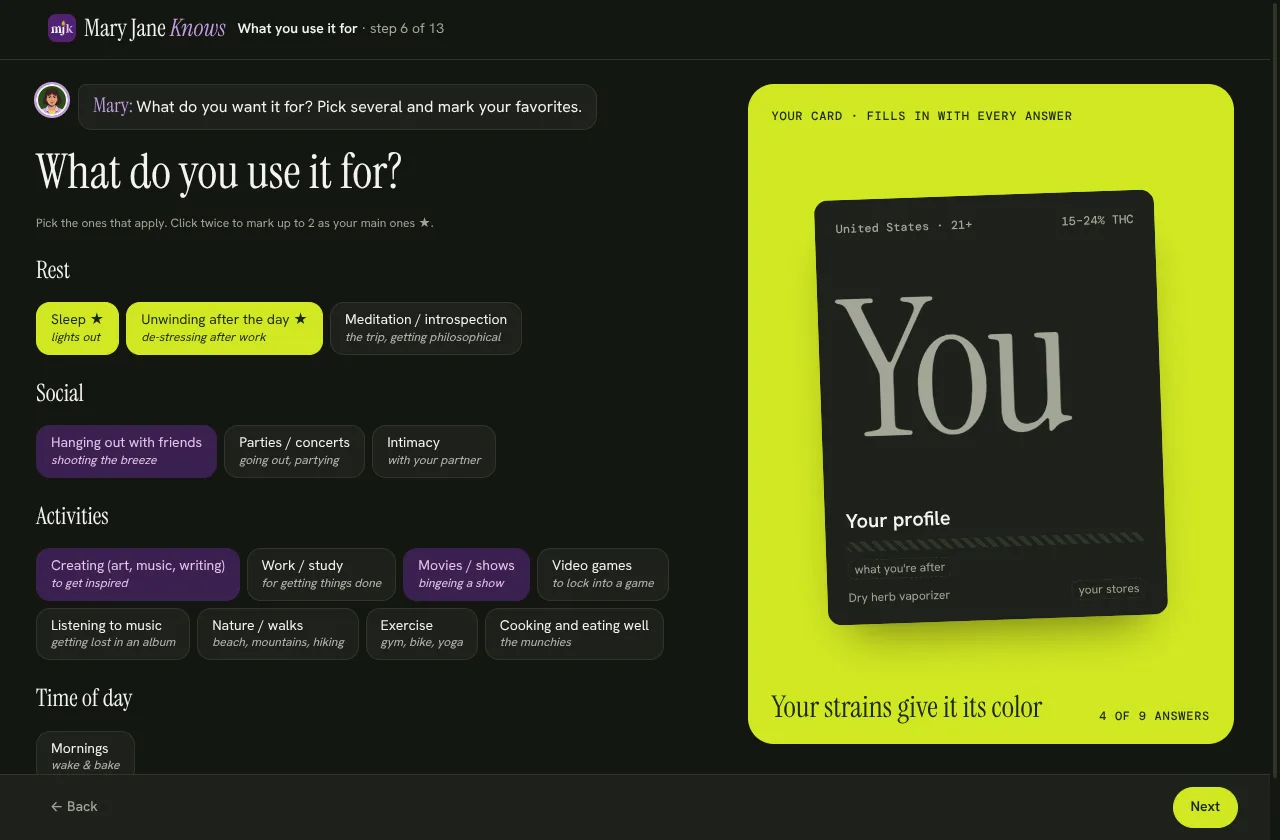
- What do you use it for? Sleep, unwinding, creating, movies… Pick the ones that apply and mark up to 2 as main ★. Your gems shelves come from here (see Your gems).
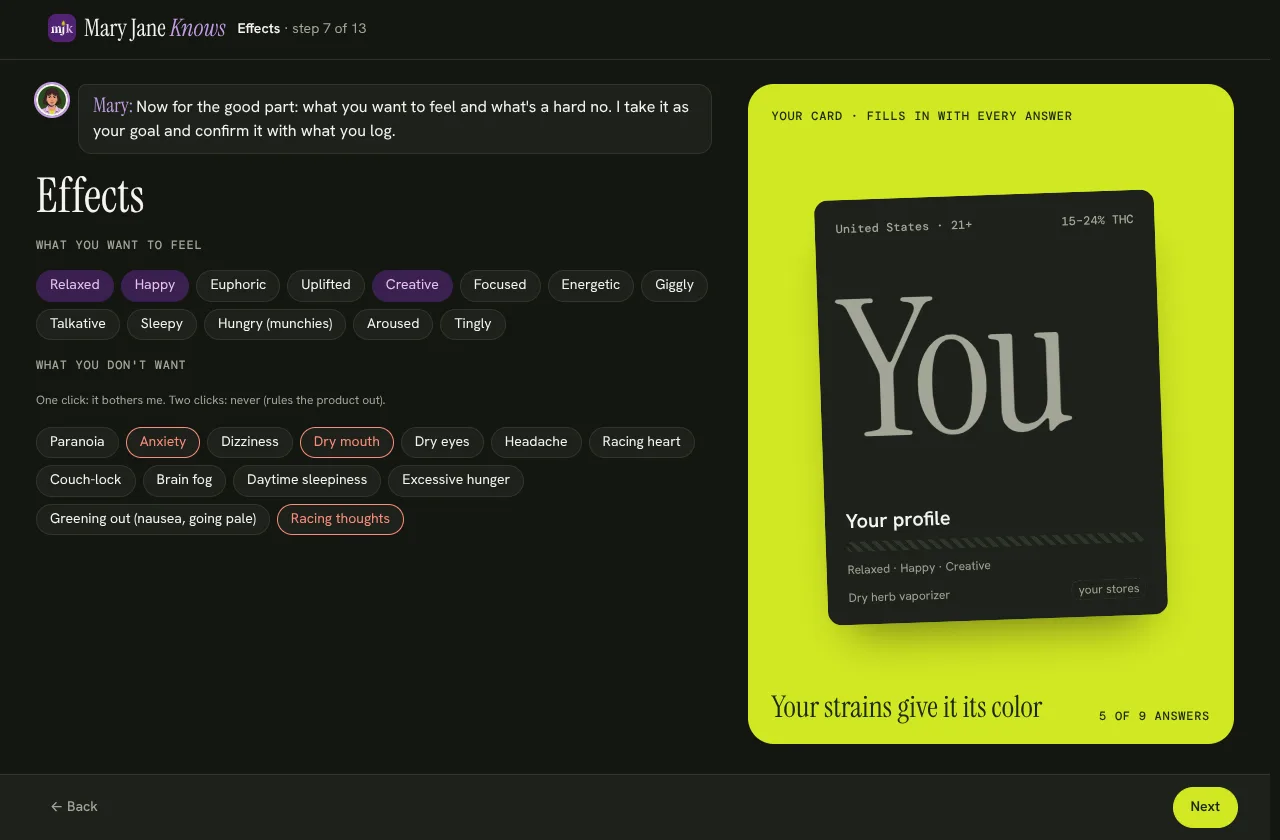
- Effects. What you want to feel and what you don’t want. In what you don’t want, one click is “bothers me” and two are “never”: a flower with that is ruled out.
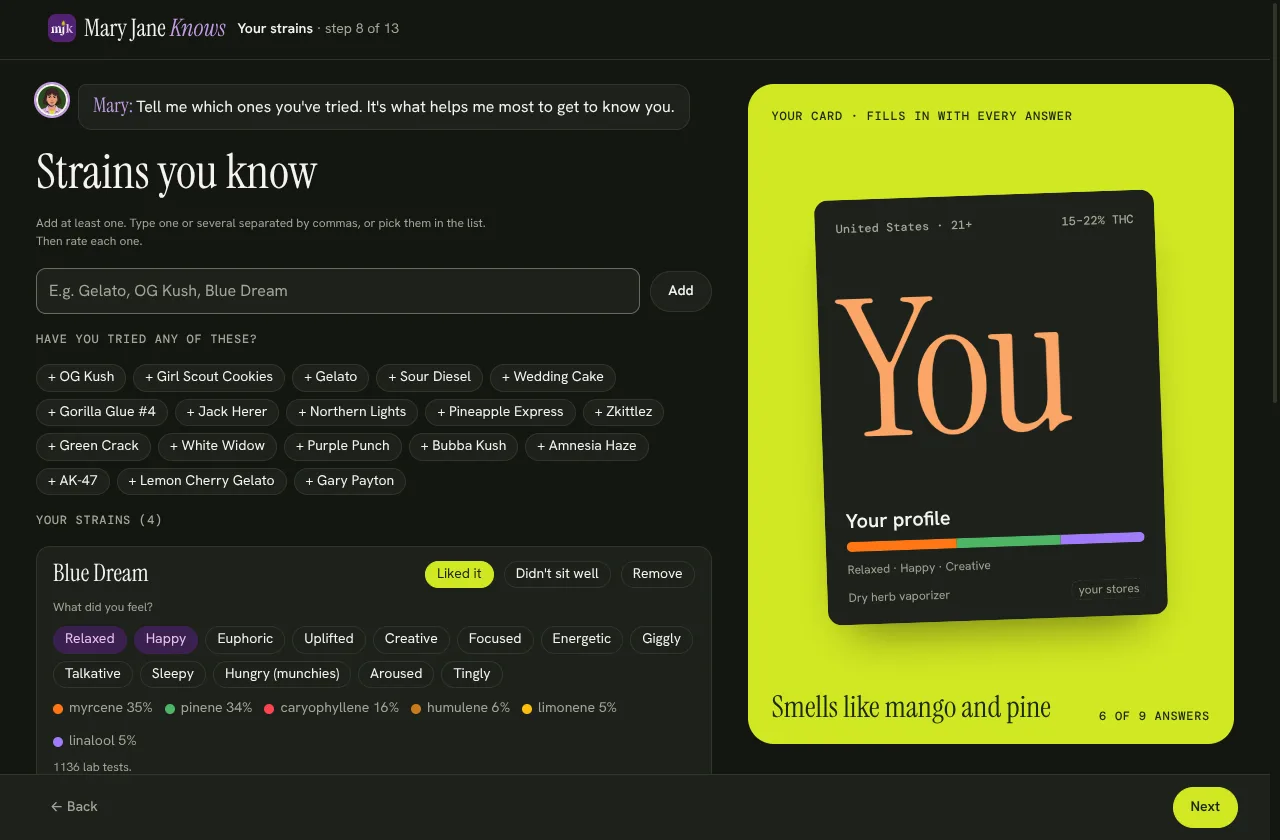
- Strains you know. This is what helps Mary get to know you the most. Type the ones you’ve tried or pick them from the list, and for each one choose Liked it or Didn’t sit well, and what you felt. Under each strain you see its terpene profile and how many lab tests it has.
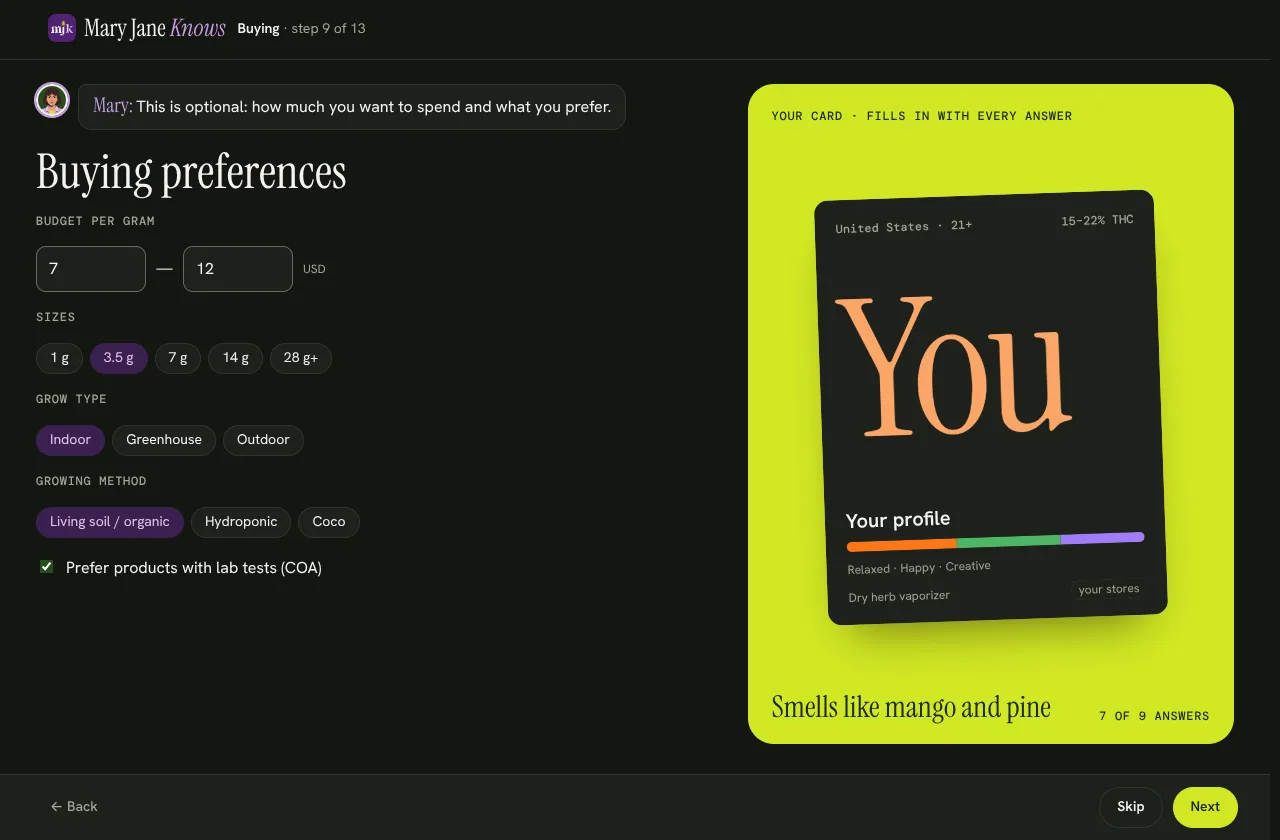
- Buying preferences (optional). Your budget per gram, sizes, grow type, growing method and whether you prefer flower with lab tests (COA).
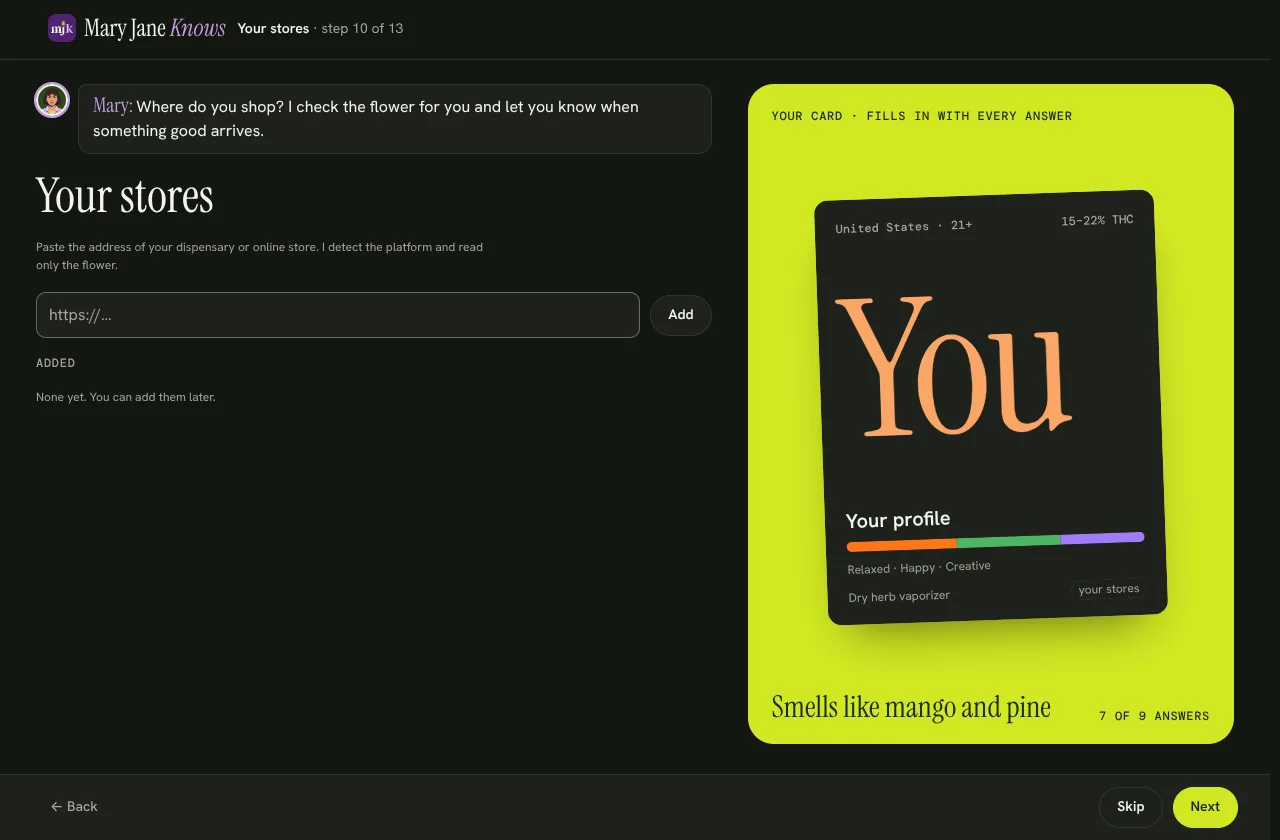
- Your stores (optional). Paste the address of your dispensary or online store; the app detects the platform and reads only the flower. See Your stores.
- Your profile. What Mary understood about you, in one sentence and in terpene bars.
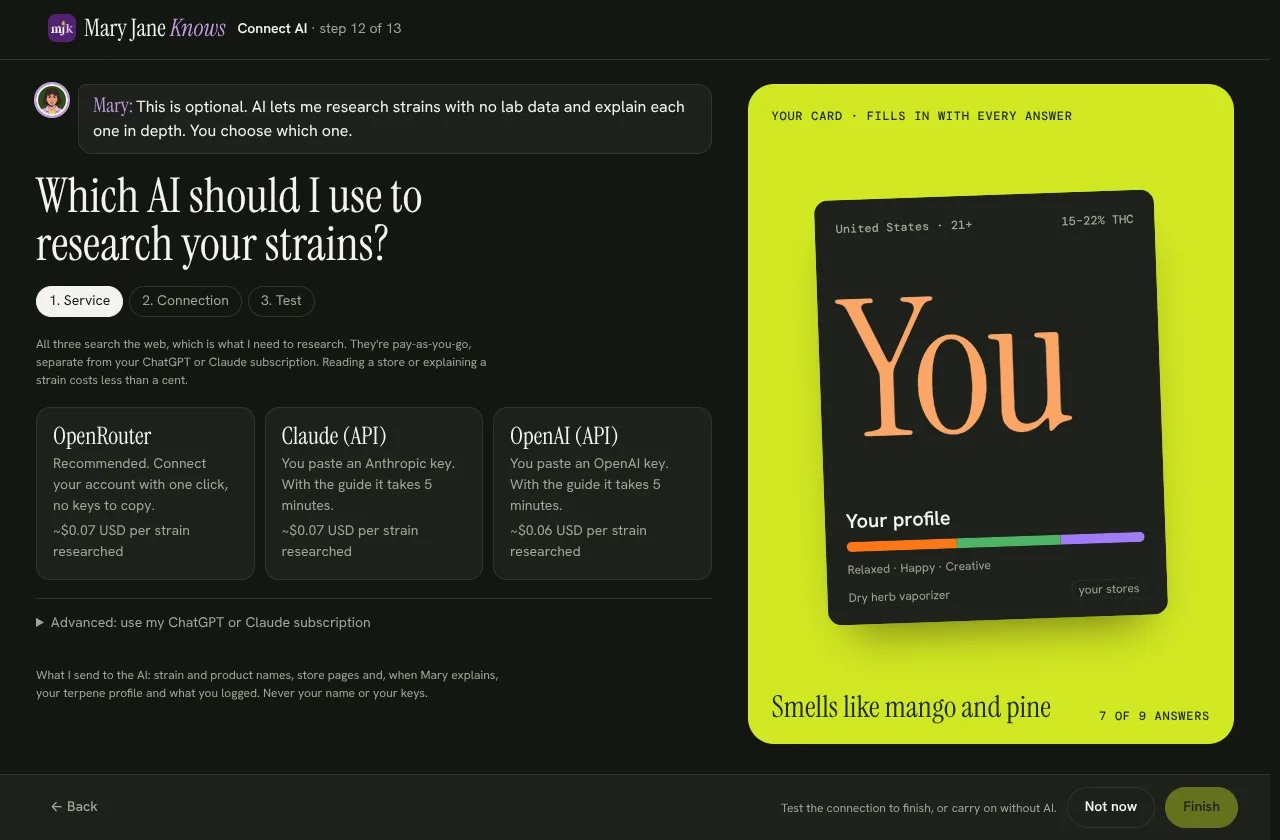
- Connect AI (optional). See Connect the AI. If you don’t want it now, choose Not now.
- Done. Choose Enter and the app opens on today’s recommendation.
Your profile
In the Your profile step, Mary shows you what she understood before you enter. The bars compare your strains with an average flower: to the right, what they have more of; to the left, what they have less of. Crossed-out terpenes are the ones your strains have much less of than average.
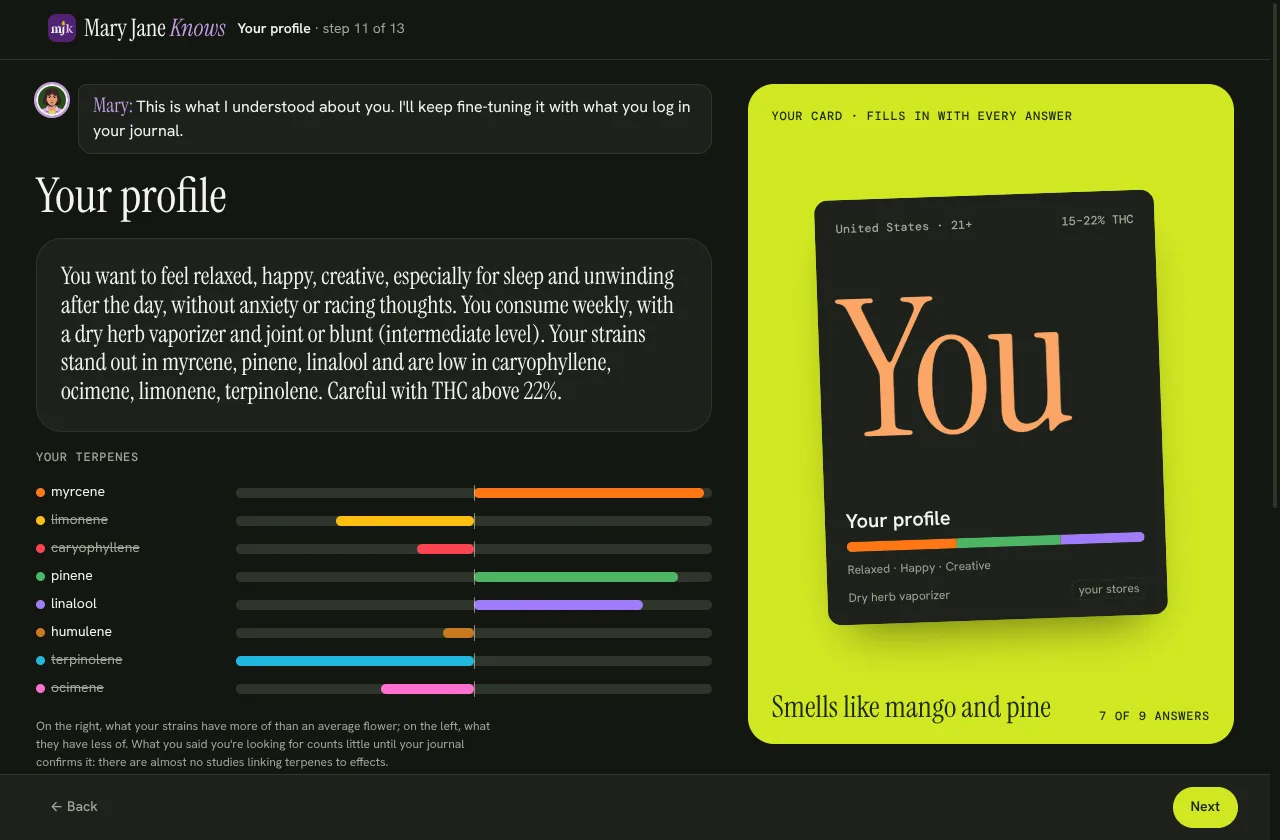
What you said you want to feel weighs little until your journal confirms it, because there are almost no studies linking a terpene to an effect. What weighs most are your strains.
To change something later, go to Your profile → Answer the opening questions again. You can leave without changing anything.
4. Connect the AI
AI is optional. Without it the app already recommends with lab data. With it, Mary also:
- Researches strains with no data. She searches online for their terpenes, other names or parents. What she finds is saved per strain and works for any store that sells it.
- Explains a flower in depth with the Have Mary explain it button, using your profile and what you logged.
- Reads stores that can’t be read on their own, when the page doesn’t publish its products in an orderly way.
AI never decides the percentage. The app calculates that.
The options
| Service | How it connects |
|---|---|
| OpenRouter (recommended) | With one click: your browser opens, you sign in or create your account, accept, and come back on your own. |
| Claude (API) | You paste an Anthropic key. |
| OpenAI (API) | You paste an OpenAI key. |
Researching a strain costs a few cents, which you pay to the service you choose. Explaining a flower or reading a store costs less than a cent.
OpenRouter’s free models work, but they’re slower: in our test, reading a store took about 80 seconds, against about 15 with the paid model.
The three steps
- Service: you pick one.
- Connection: you connect your account or paste your key. The key is stored encrypted in your system keychain and only goes to the service you chose.
- Test: Test connection sends a short hello. If you see ✓, the connection works.
If you connect later, from Settings → AI connection, don’t forget Save connection: until then Mary keeps using the previous one.
What gets sent to the AI
Strain and product names, store pages and, when Mary explains, your terpene profile and what you logged. Never your name or your keys.
OpenRouter’s free models come from providers that may keep what you send them and use it for training.
How much it spends on its own
In Settings → AI connection:
- Research strains with no data automatically is off by default. Almost every strain already has lab data, and the ones that don’t, you research yourself with a button. If you turn it on, you set a daily cap.
- Re-read in the background the stores that are read with AI only costs when the store’s page changed.
- Use free models to explain and read stores (OpenRouter only) is off by default. With it on, explaining and reading stores cost nothing, but free providers may keep what you send them and use it for training (when Mary explains, that includes your terpene profile and what you logged), they find fewer products in each store and take longer. Researching still costs money. It’s your call.
- Models per task (inside the connection) already comes with the models that did best in our tests. Only change them if you know what you’re doing.
5. Your stores
Add a store
In Settings → Stores (or in the Stores → + Add store menu), paste the address of your store or its online menu and choose Add. The app detects the platform, reads only the flower and tells you how many it found.
It reads the menus of most dispensaries and online stores. Paste the address and the app tells you whether it can read it.
In the welcome, the Your stores step works the same way. If you don’t want to add any yet, choose Skip.
A store’s page
Each store has its page in the Stores menu. The top says when it was last checked.
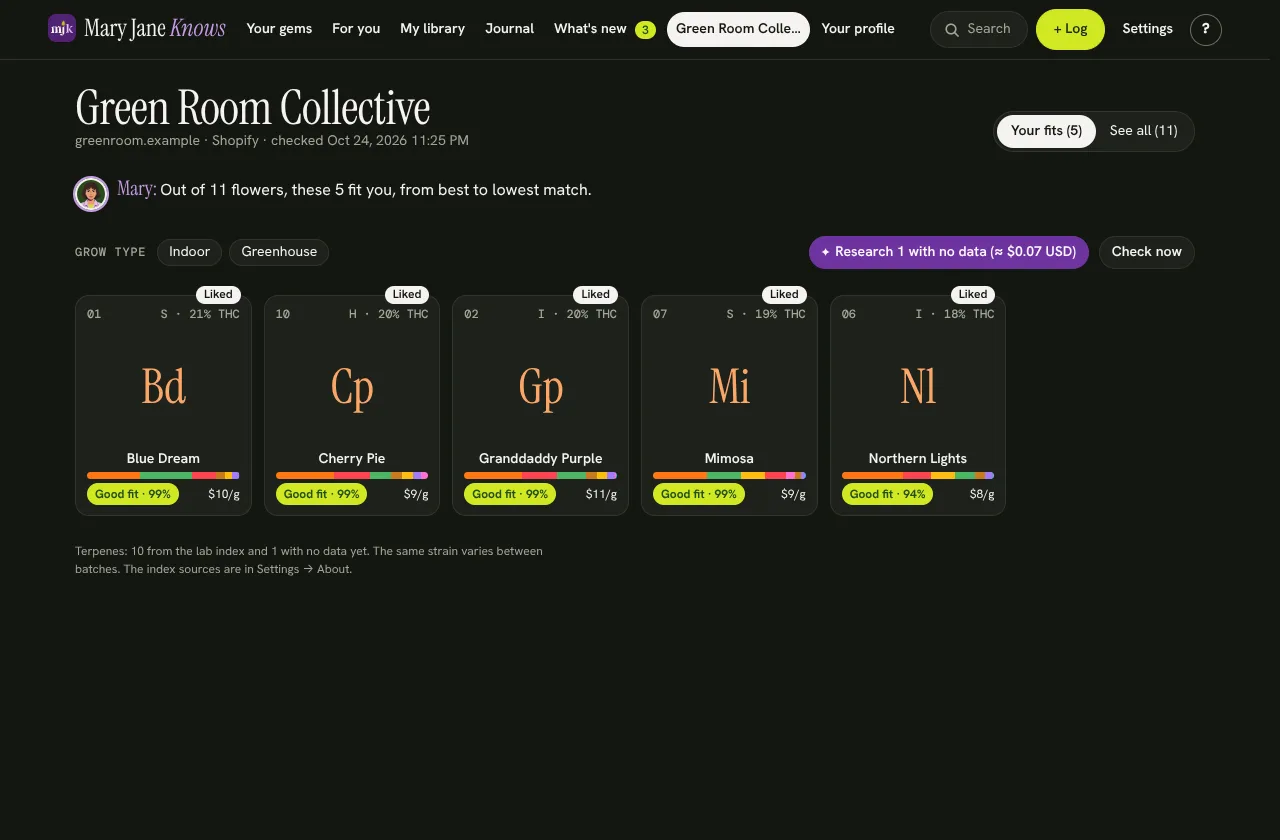
- Your fits shows only the ones that fit you, best to worst. See all shows all its flower.
- Grow type filters by indoor, greenhouse or outdoor.
- Check now reads it again right away.
- Research N with no data sends the strains with no data to the AI and tells you what it costs before doing it.
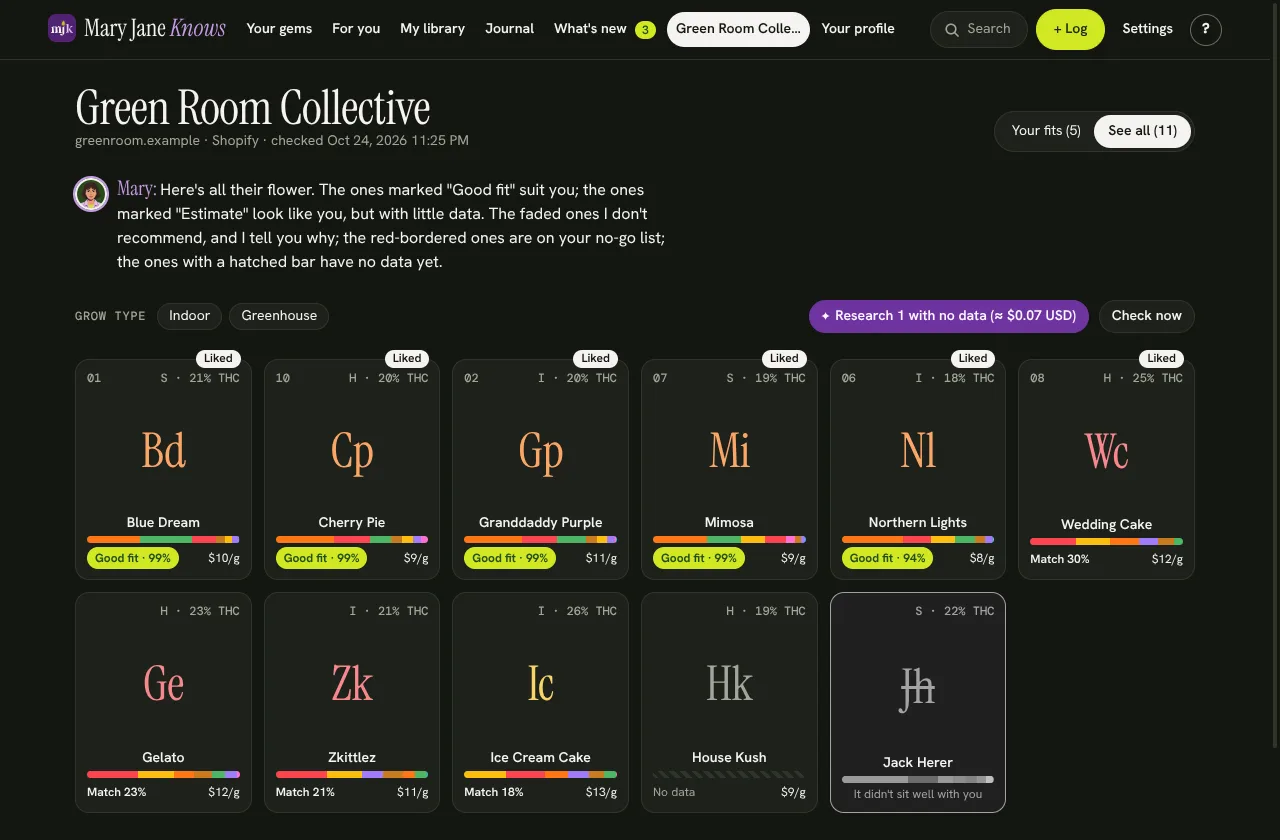
How to read the cards in See all:
- Good fit · 99%: it fits you.
- Estimate: it looks like you, but with little data (see How Mary decides).
- Match 23%, faded: not recommended.
- Red border and crossed out: it’s on your no-go list.
- Hatched bar: no data yet.
Currency, removing and checks
- Each store’s currency is changed in Settings, next to its name. The budget per gram only counts at stores that charge in your currency.
- Remove deletes the store and what was read from it; it asks you to confirm. What you logged about its flowers stays in your journal.
- With the full version, stores are checked on their own every 6 hours. If a check fails, the store’s page says so and the app tries again in about 30 minutes.
- If a store sells other drugs besides cannabis, the app stops reading it, stops showing its flowers and lets you know.
6. For you
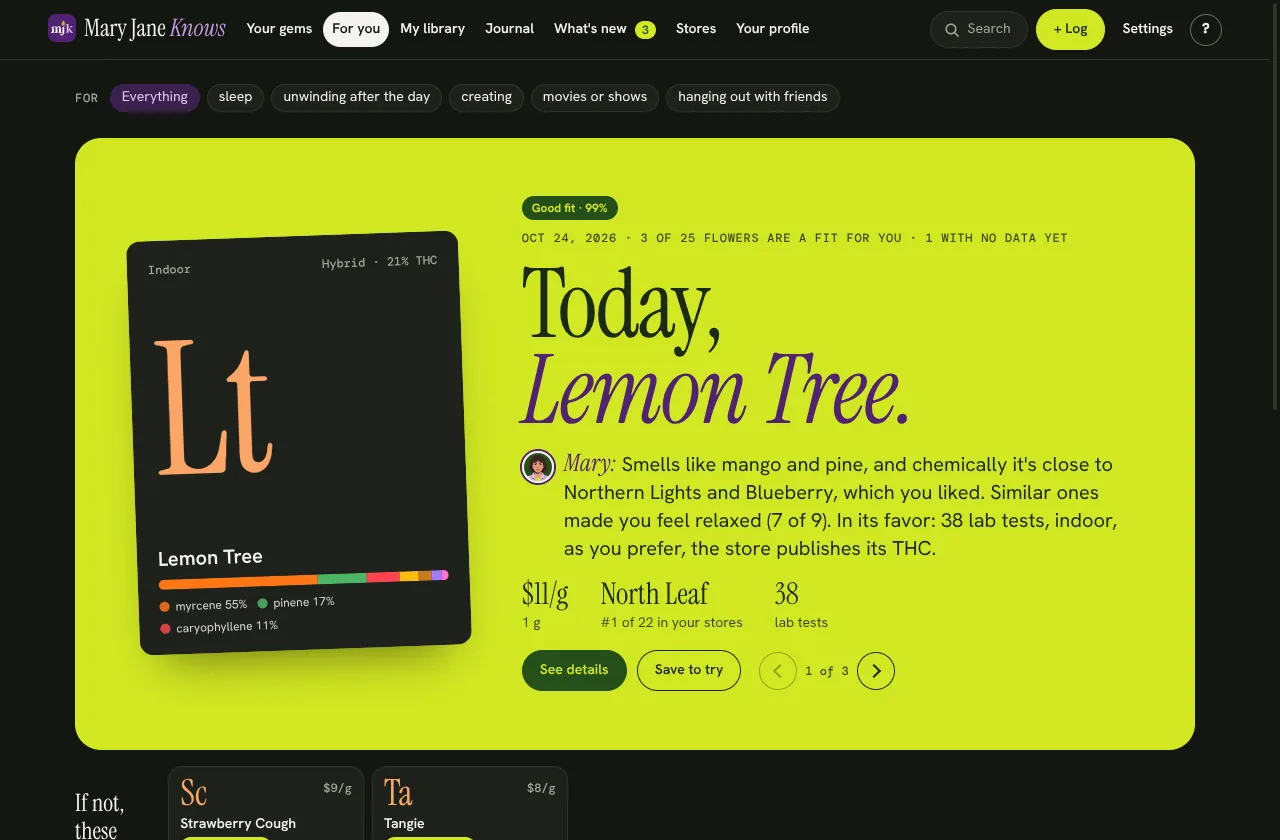
For you is the answer of the day: the flower in your stores that fits you best today.
- At the top: the date, how many flowers fit you out of all those in your stores, and how many have no data yet.
- Today, strain. Today’s best flower, with what Mary says: what it smells like, which of your strains it’s close to, how similar ones made you feel and what it has for and against it.
- The details: price per gram, the store and its rank among all the flowers in your stores, and how many lab tests it has.
- See details opens that flower’s sheet (see A strain’s page). Save to try sends it to your library.
- The arrows (or ← → on the keyboard) go to the next one.
- If not, these: the ones that follow, in a row.
- See all N good fits opens the full list, sorted by best match or by lowest price per gram.
- From your library, in stock now: strains you like or saved to try that are in one of your stores today.
For
At the top there’s a filter with your uses (sleep, creating…). When you pick one, For you sorts the flowers by what has worked for you for that, not by your general profile. It comes from Your gems.
7. How Mary decides
Every flower has a percentage: how well it fits you. The app calculates it, always the same way, with data and without AI.
Where the flower’s data comes from
In this order, the first one available:
- The batch test, if the store publishes it.
- The lab index: the strain’s typical profile, from all its tests.
- Its parents, if it’s a cross and the store or the index says which ones.
- What the AI researched, if you connected it.
If there’s nothing, the flower says No data.
Your profile
Your profile is the aroma of the strains you like, compared with an average flower: what they have more of and less of. It comes almost entirely from your strains (the ones from the welcome, your library and your journal).
Terpenes without promising effects
There are almost no studies linking a terpene to an effect, and Mary doesn’t assume one. She uses terpenes in three different ways:
- As your strains’ fingerprint. This is almost the whole percentage. It doesn’t say “myrcene relaxes”; it says “this flower is chemically close to the ones you liked”. Whether that works for you is the app’s bet, and your journal puts it to the test: see My track record with you in Log and the journal.
- For what you said you want to feel. Here there is an effect-to-terpene table, but only with what has some study behind it, and it weighs little. If there are no strains with data yet, it’s all there is.
- Never to tell you what you’ll feel. The effects it shows you, like “Similar ones made you feel relaxed”, come from what you logged.
The more you log, the more your journal weighs, until it outweighs what you said at the start. Recent entries weigh more than old ones. Three stars is neutral: it neither adds nor subtracts.
The percentage
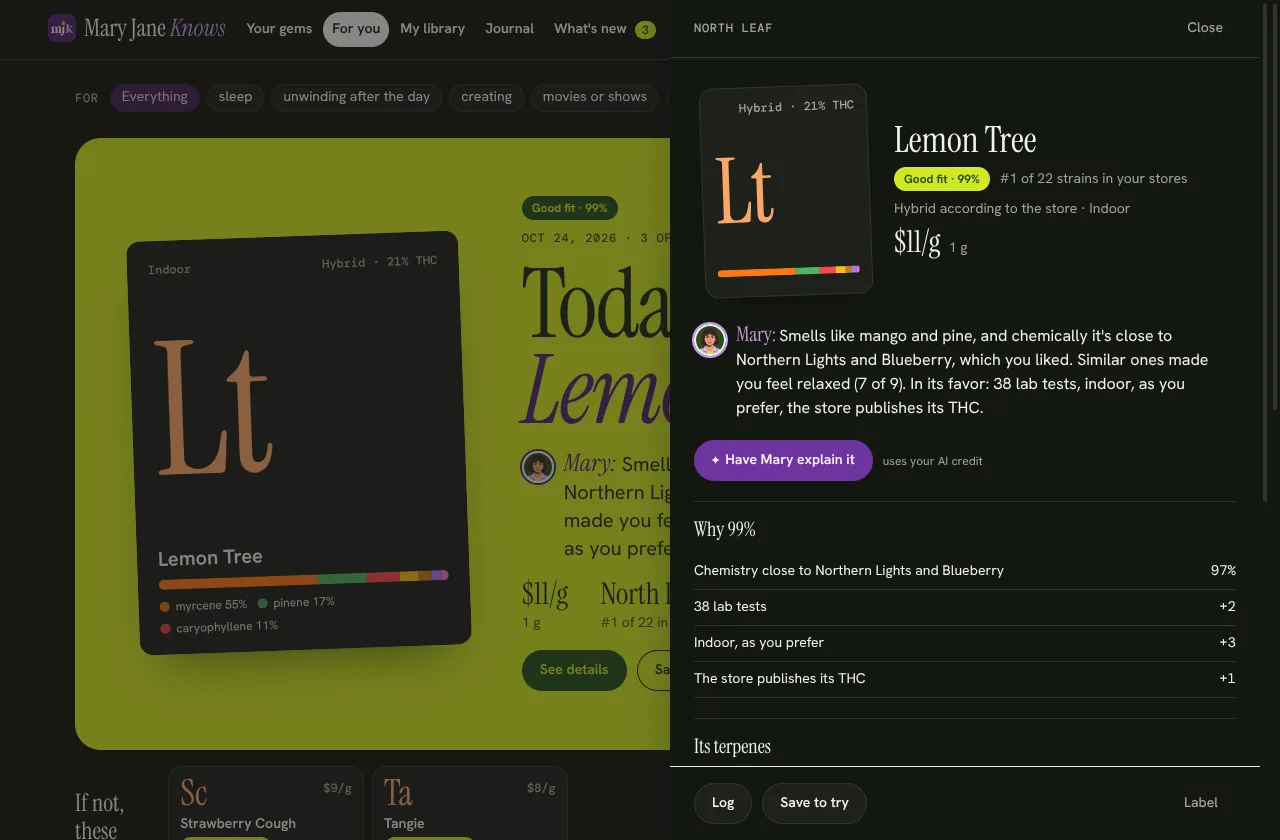
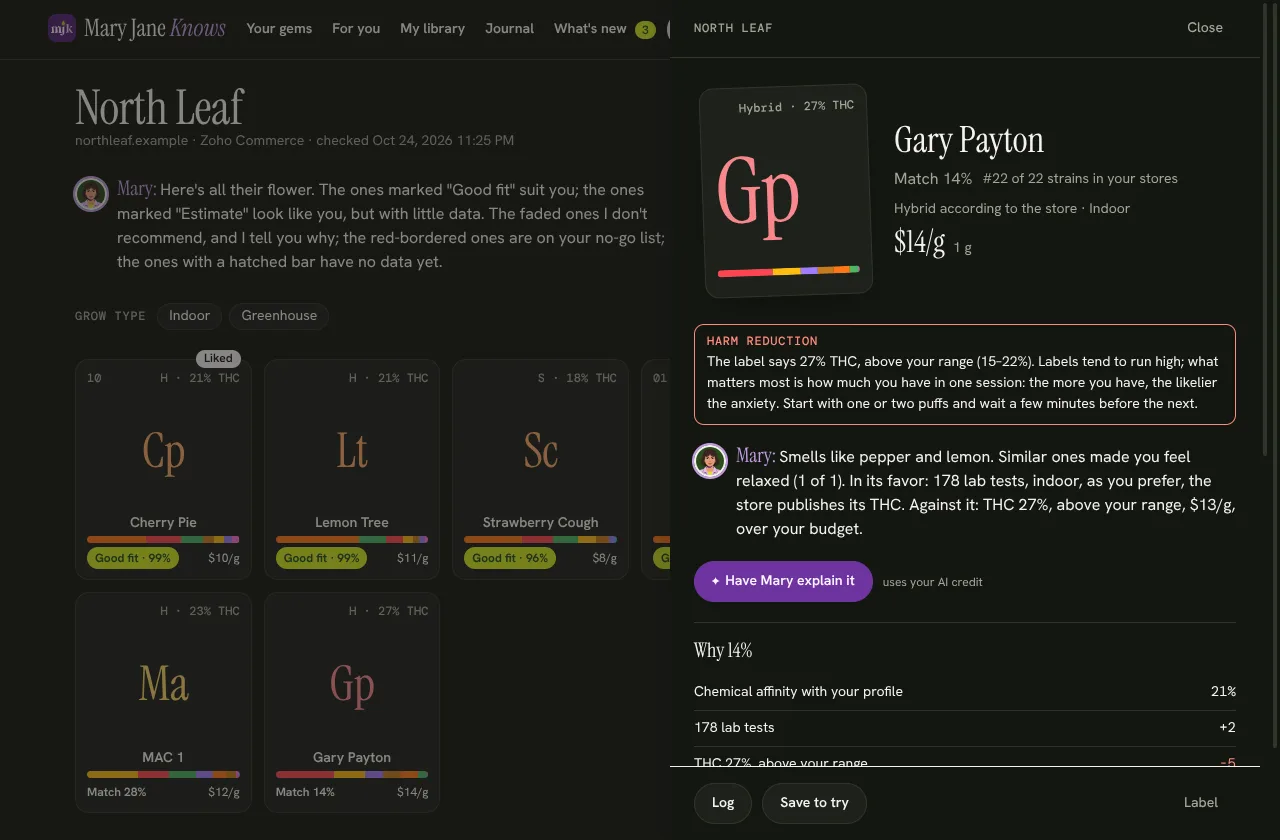
On each flower’s sheet, Why N% shows the math:
- Chemistry close to…: how close the flower’s aroma is to your profile. It’s almost the whole number.
- The adjustments, each with its points: THC outside your range, budget per gram, size, grow type, growing method, whether it has lab tests (COA), whether it has many lab tests, or whether it’s close to one that gave you paranoia.
Good fit are the ones closest to you.
Estimate
If there’s little data (one or two tests, an estimate from its parents or from another phenotype, or what the AI found), the percentage shows as Estimate, with its reason. An estimated flower doesn’t go into For you or notifications, even if its number is high.
What rules a flower out
A flower isn’t recommended if it’s on your no-go list, if it’s almost identical to one that gave you paranoia or anxiety, or if its main terpene is one you marked “never”.
THC never rules one out: if it’s above your range, it loses points and you get a warning. If you marked paranoia or anxiety, the warning shows as Harm reduction: what matters is how much you have in a session. Start with one or two puffs and wait.
How it’s made you feel
Apart from the percentage, every flower says what you felt with it or with chemically similar ones, and how many times. It’s your experience, not a promise.
8. A strain’s page
There are two views of a strain:
- A flower’s sheet, which opens from For you, a store or What’s new. It’s a store’s product.
- The strain’s page, which opens from your library, Search or the journal. It’s everything you know about that strain.
A flower’s sheet
From top to bottom: the store, the card with its percentage and its rank in your stores, what Mary says, Why N%, its terpenes and where they come from, how it’s made you feel, what the store says, the sizes with their price per gram and, if the store has the same strain in other options (another brand, another batch), which is which.
At the bottom, always visible: View in store ↗, Log, Save to try (or See my journal, if it’s already in your library) and Label.
Not that strain? Under the name the store uses there’s Not strain? Correct it. Type only the strain, without brand or size. The app remembers it in the next checks.
The strain’s page
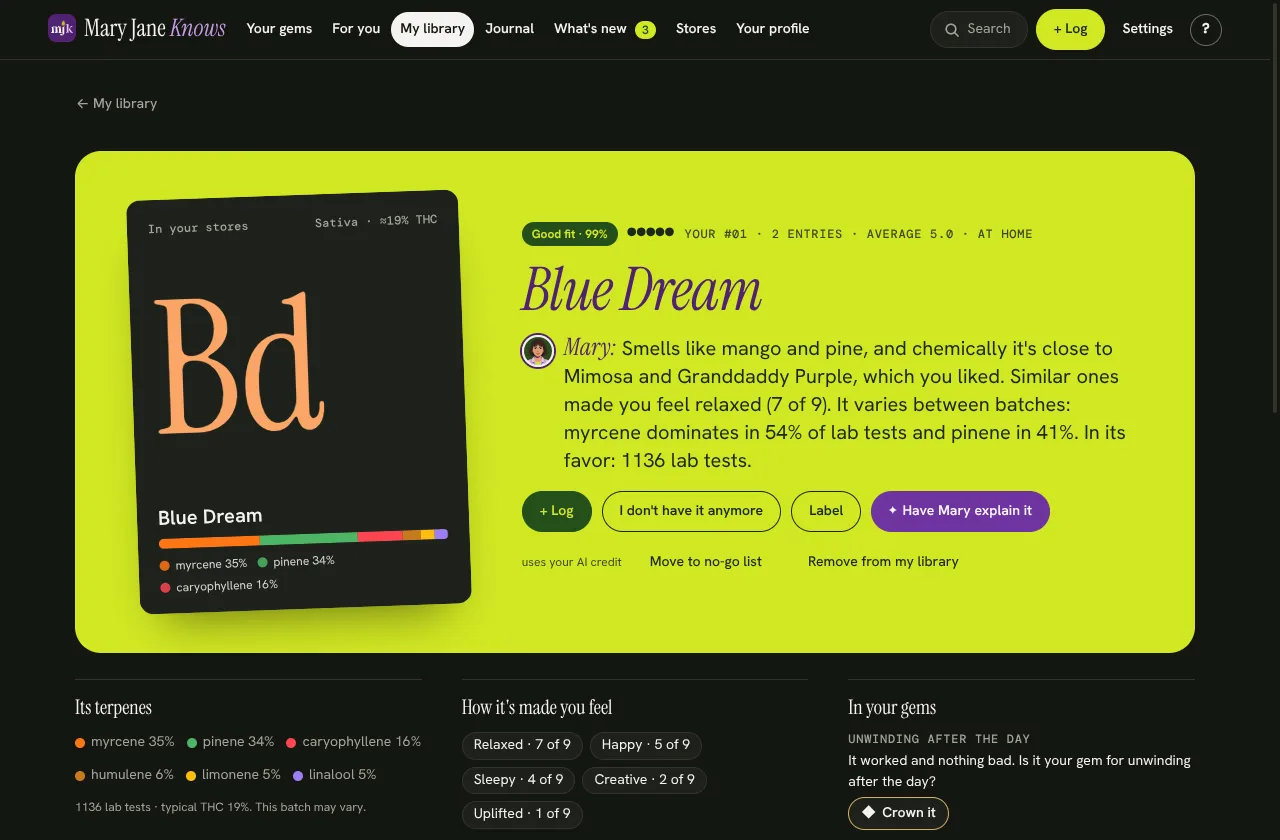
- At the top: whether it fits you, your stars, its number in your library, how many times you logged it and whether you have it at home.
- Buttons: + Log, I have it at home (or I don’t have it anymore), Label, Have Mary explain it, Move to no-go list and Remove from my library.
- Its terpenes, with how many tests it has and its sources.
- How it’s made you feel and In your gems: whether it’s your gem or a candidate for some use.
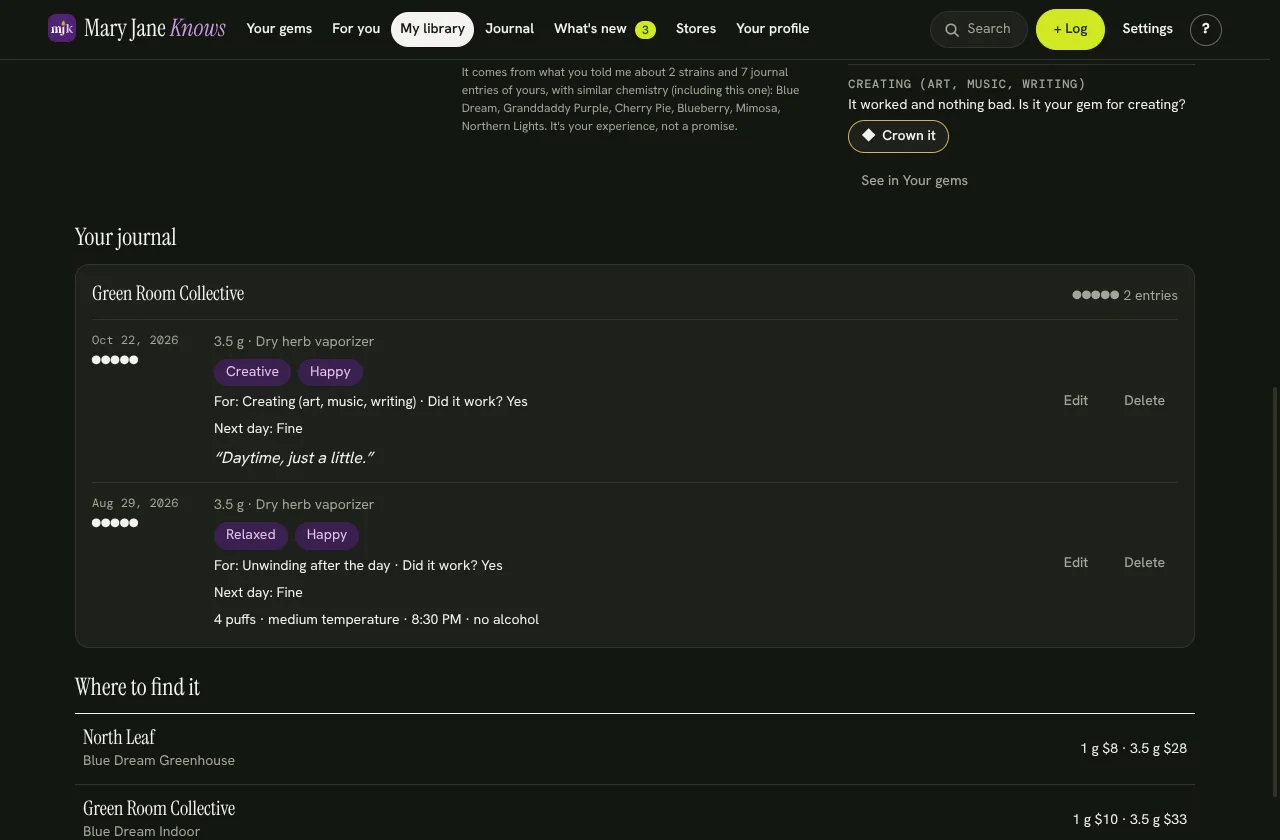
- Your journal: each entry, grouped by store, with Edit and Delete.
- Where to find it: which of your stores have it today and at what price. If none do, it shows you similar ones.
Have Mary explain it
With the AI connected, Have Mary explain it writes a longer explanation of that flower for you: why it’s close to your strains, what to expect from its aroma and what to keep in mind. It spends a little of your balance. The explanation is saved and stays current as long as your profile doesn’t change much.
To try, blind
If you saved a strain to try, its page doesn’t show the percentage until you log it, so it doesn’t sway you. If you want to see it, choose Show me what you think anyway.
9. Search
Search, at the top right (or Ctrl+K, or /), looks for a strain in your library, in what’s in your stores and in the whole lab index.
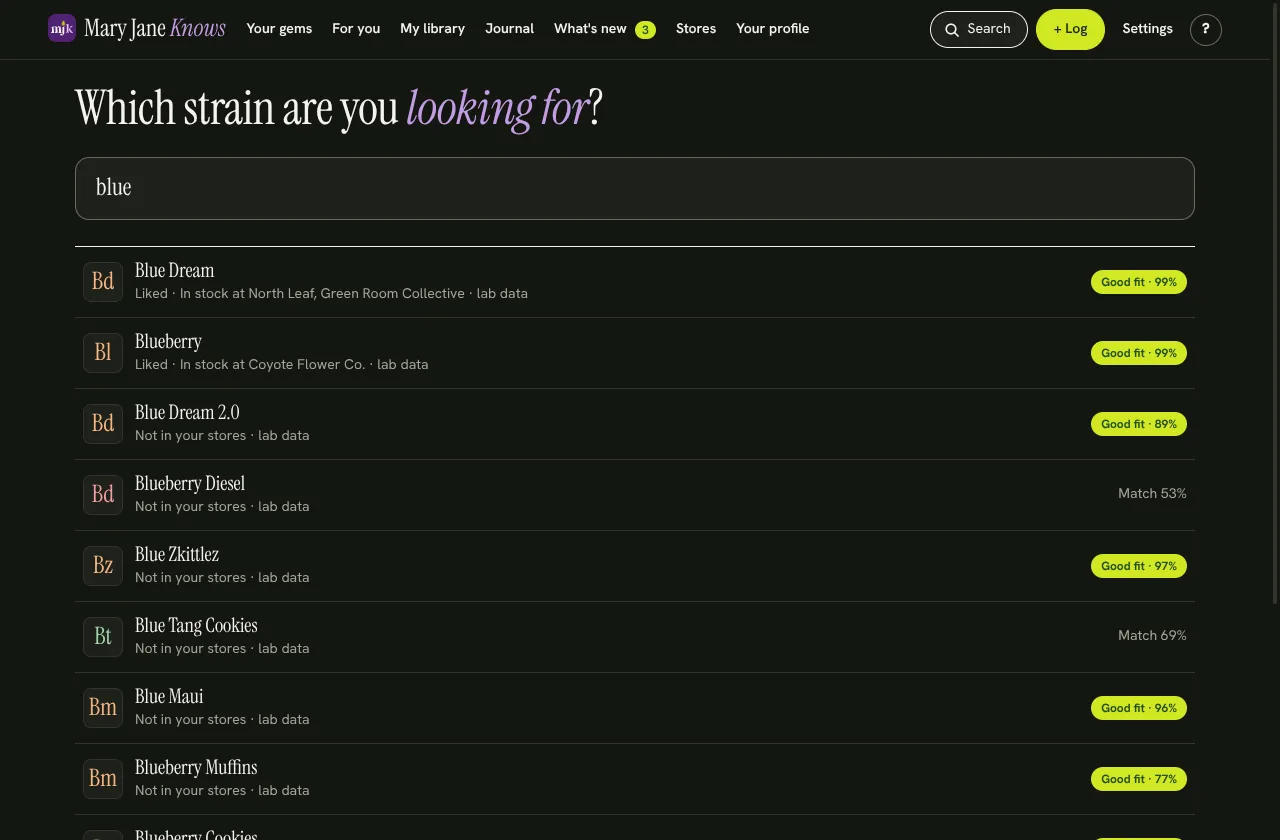
Each result says whether it’s in your library, which of your stores have it, where its data comes from and whether it fits you. Move down to the results with ↓ and open one with Enter.
If it doesn’t show up, Open strain anyway opens its page anyway; with the AI connected, you can research it from there.
10. My library
My library is your periodic table: each strain you know is an element, with two letters, a number and a stripe in the color of its terpenes.
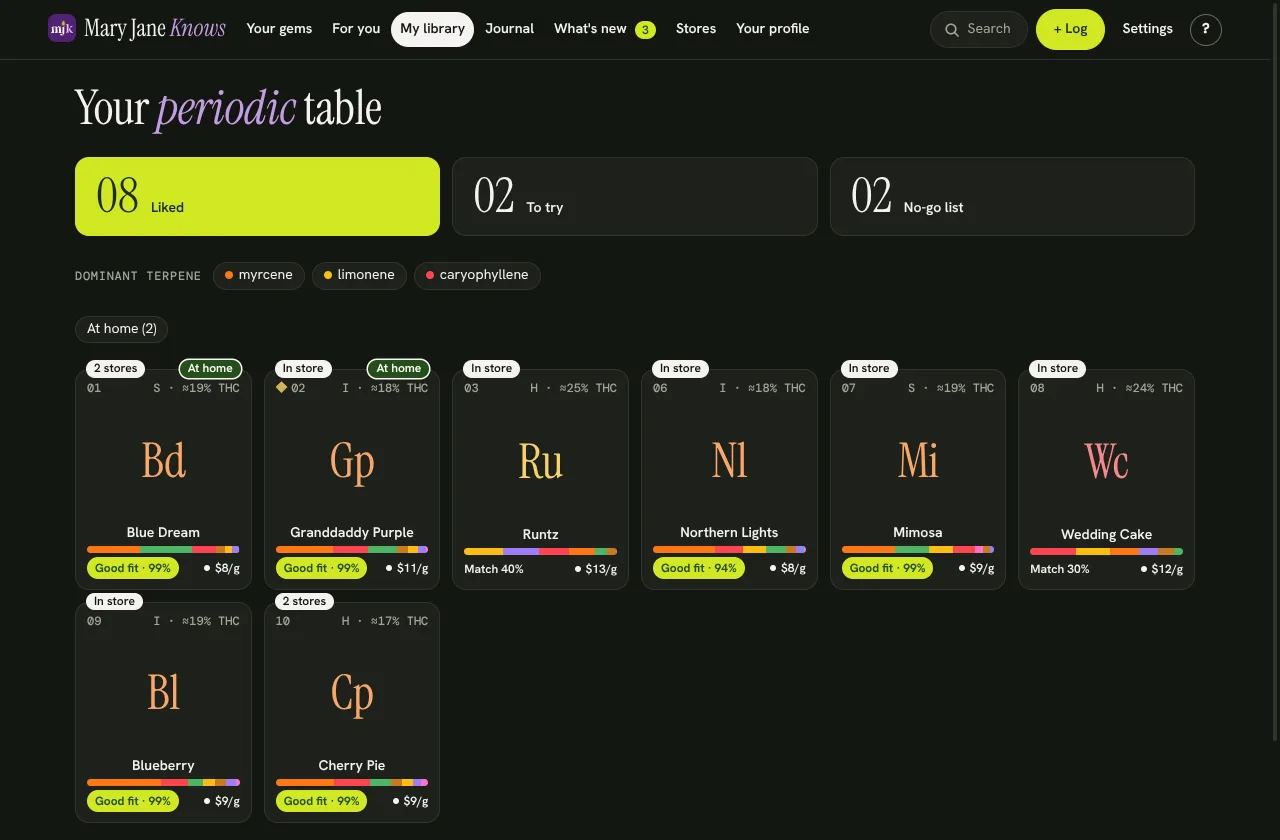
- Liked: the ones you liked. They’re the base of your profile.
- To try: the ones you saved. They don’t count toward your profile until you try them.
- No-go list: the ones that didn’t sit well. It never recommends them, and if they show up in a store, they’re in red.
The number is the order in which each strain arrived in your library. Above each card it says whether it’s in your stores today (In store, 2 stores) and whether you have it At home.
In Liked you can filter by Dominant terpene and by At home.
To try
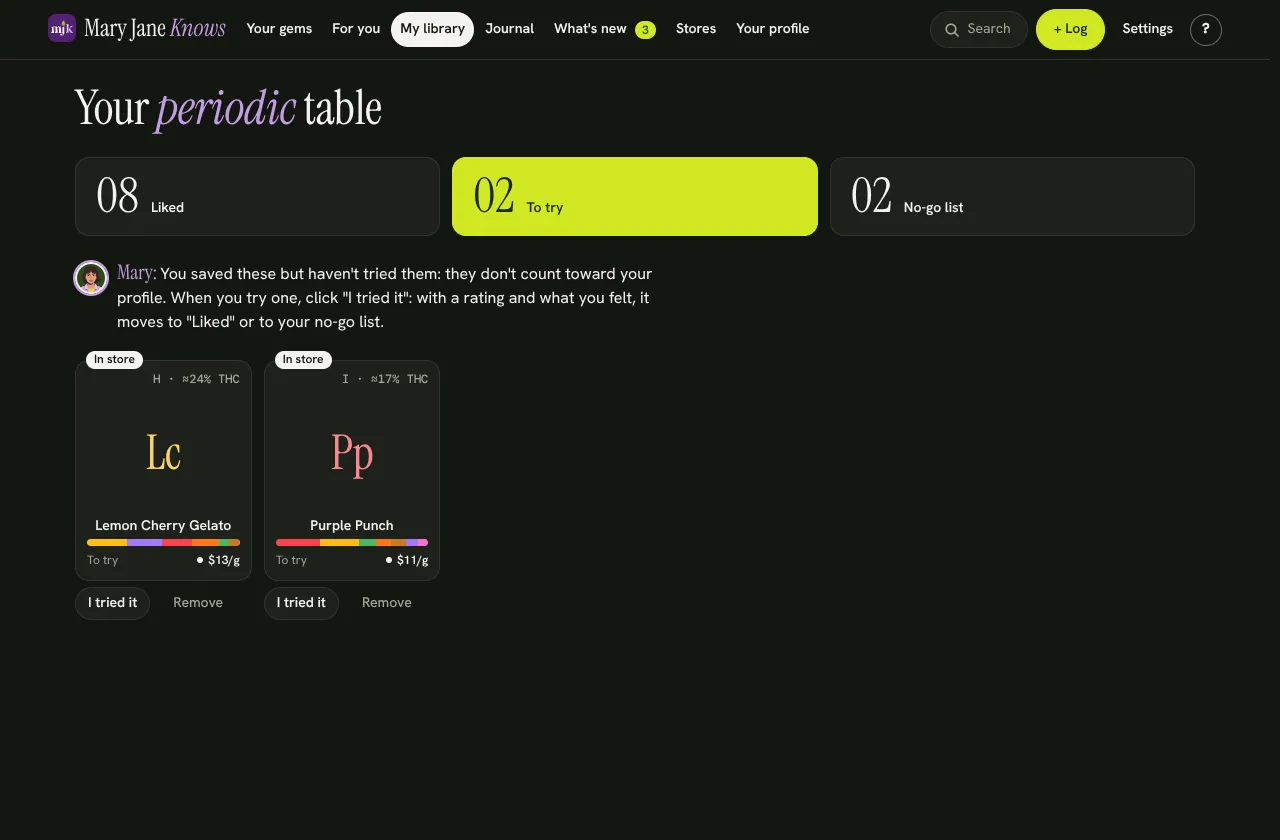
When you try one, choose I tried it: with a rating and what you felt, it moves to Liked or to your no-go list.
Moving and removing
From each strain’s page you move it to the no-go list, take it out of there or remove it from your library. Everything can be undone from the notice at the bottom for a few seconds, or with Ctrl+Z. What you logged about a strain stays in your journal even if you remove it.
11. Log and the journal
Logging is what helps Mary fine-tune your recommendations the most. Three clicks is all it takes.
Log
Choose + Log at the top (or the N key), or Log on a strain’s page.
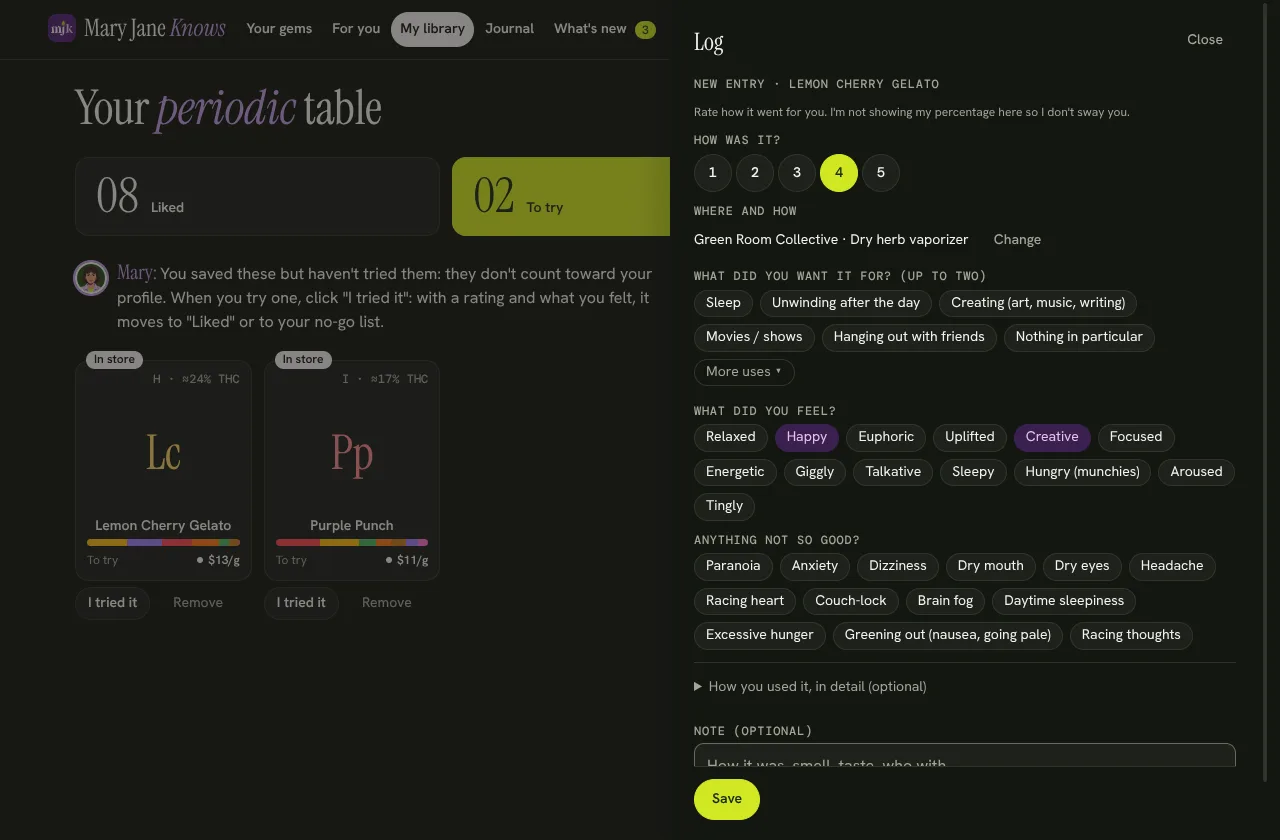
- How was it? From 1 to 5. It’s the only required thing. Also with the 1 to 5 keys.
- Where and how: the store and the method. It’s almost always the same, so it comes filled in; Change opens it.
- What did you want it for? Up to two uses, and for each one, Did it work for that? This fills the shelves in Your gems. More uses shows the ones you didn’t pick at the start.
- What did you feel? and Anything not so good? The effects, good and bad. A strain you liked can also give you dry mouth.
- How you used it, in detail (optional): puffs, temperature (only with a vaporizer), time and whether you drank alcohol. It’s for comparing tries of the same strain.
- Note (optional).
Save (or Ctrl+Enter). If you give it 1 or 2, the strain goes to your no-go list; before saving you can uncheck that.
Blind
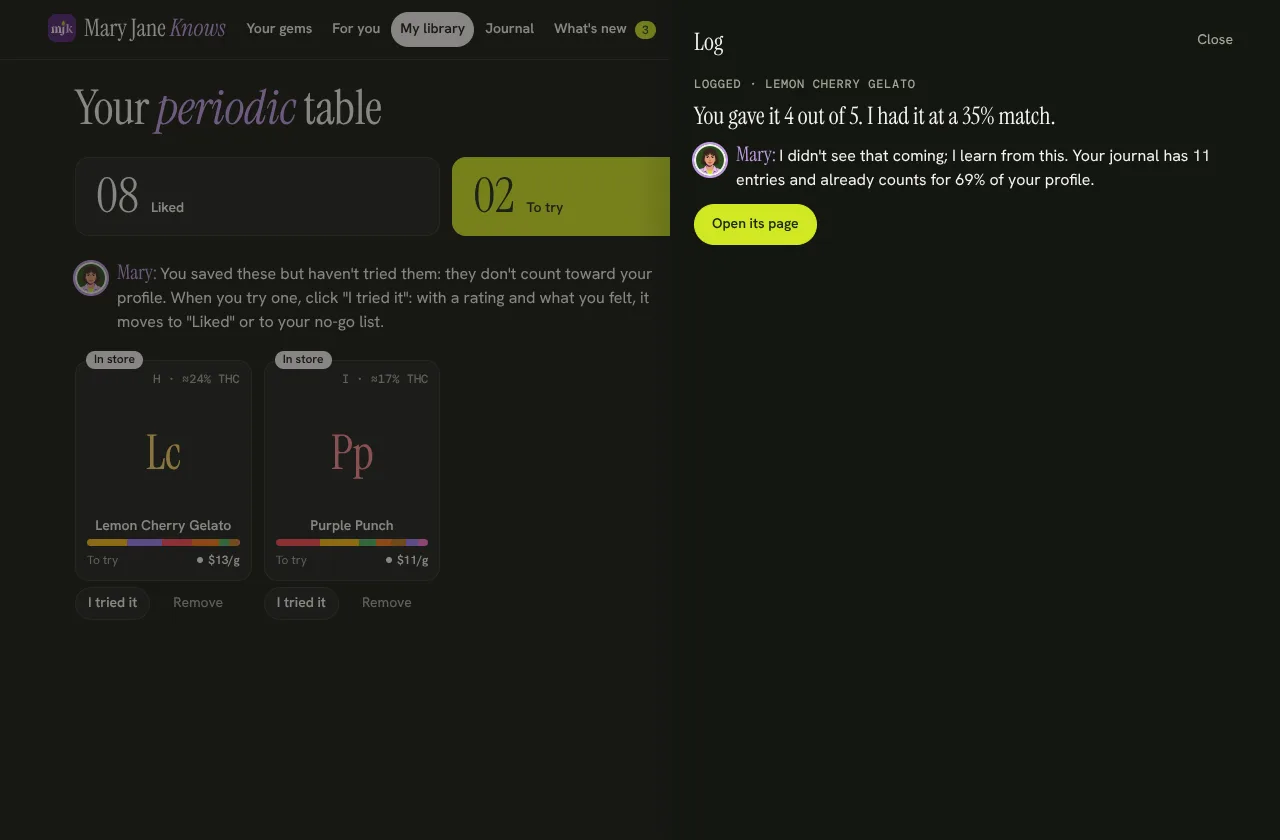
While you log, the app doesn’t show its percentage or your previous stars: seeing what the app predicted pulls your rating toward that number. Once the entry is saved, Mary tells you what she predicted and whether she got it right.
How did you wake up?
The next day counts: some flowers you like in the moment leave you with a headache or a slow mind. What you logged today or yesterday shows up in the Journal with the question How did you wake up?. You can also answer it with Edit, on the strain’s page.
The journal
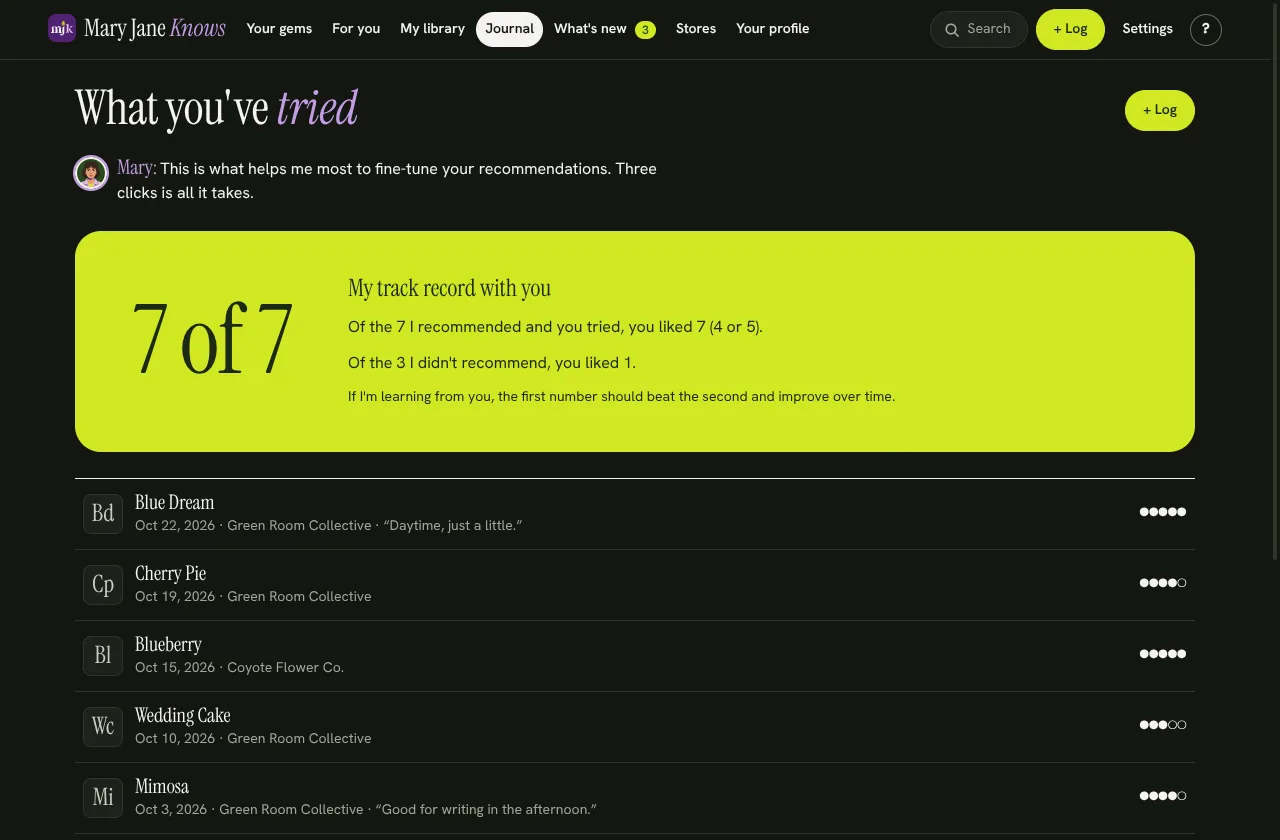
The Journal screen has everything you logged, newest first, and My track record with you: of the ones she recommended and you tried, how many you liked (4 or 5), against the ones she didn’t recommend. If Mary learns from you, the first number beats the second.
Each entry is edited or deleted on its strain’s page. Deleting is undone from the notice or with Ctrl+Z.
12. Your gems
Your gem is the strain that gives you what you’re after for something, with nothing bad. Chemistry narrows down the candidates; what you log decides. You put the crown on.
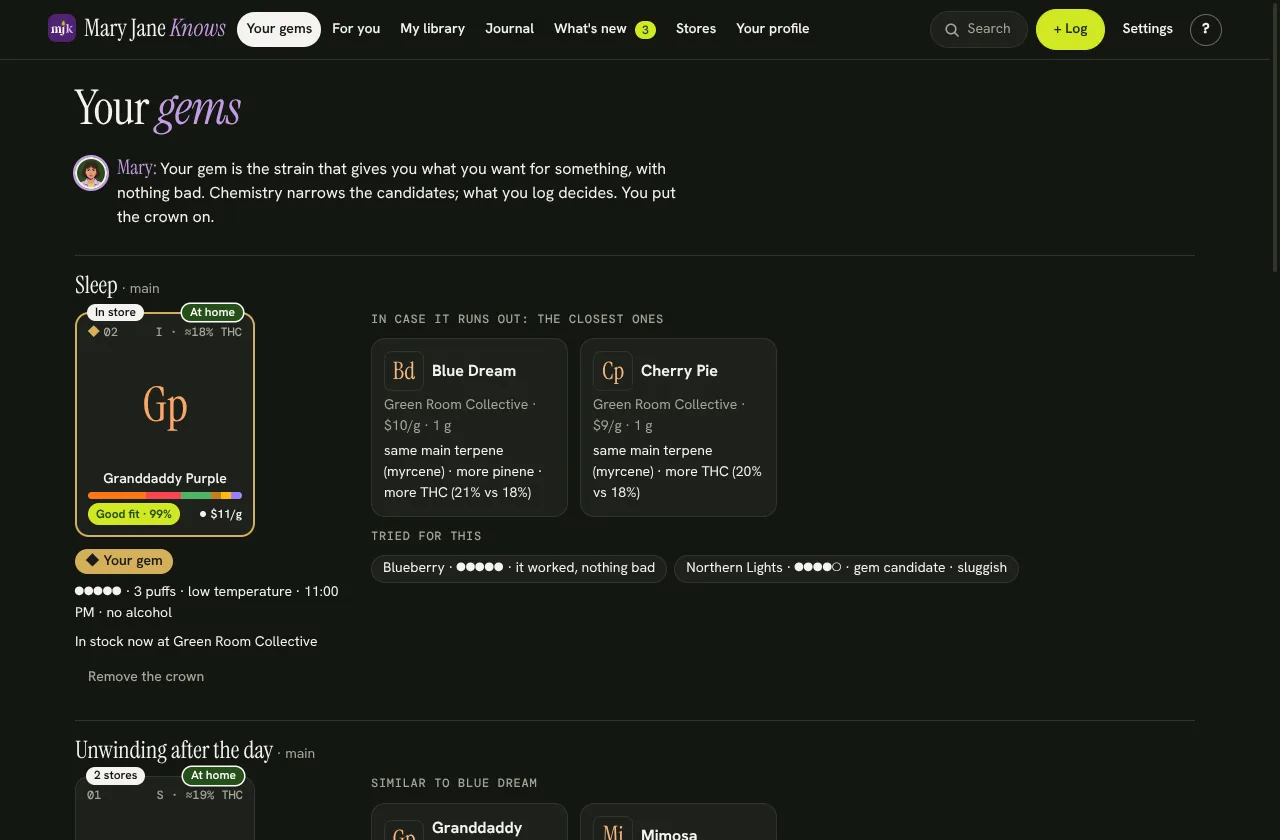
One shelf per use
Each use you picked (sleep, creating…) has its shelf; your main ones go first. On the left is the best you have for it:
- ◆ Your gem: the one you crowned. It says how it worked for you and whether it’s in your stores now.
- Is it your gem? One that worked for that and left nothing bad. If you agree, Crown it.
- ◇ Gem candidate: it worked, but it still has something to lose, like a headache the next day.
- Empty: you haven’t logged anything for that use yet.
On the right, flowers from your stores for that use: In case it runs out: the closest ones to your gem, Same chemistry, different flower for a candidate, or Candidates in your stores. Below, Tried for this, with how each one went.
A candidate: two paths
If a strain works for you but leaves something bad, there are two paths:
- Another flower with the same chemistry, on the right. There’s no promise it will remove that: no terpene is linked to how you wake up.
- Same strain, a different way. Change one thing at a time: fewer puffs, then a lower temperature, then earlier, and no alcohol. Mary tells you which one is next, and Log a try opens the entry with everything else the same as last time. What has the most evidence is that less THC means fewer negative effects.
To start and other uses
- To start groups the uses where you haven’t logged anything yet, because without that their candidates come out almost the same. When you log one for a use, that use splits off with your own data.
- Other uses are the ones you didn’t pick. Choose one and Mary tells you what’s in your stores for it. If one works for you, when you log it pick that use in More uses and it will get its own shelf.
13. Your profile
Your profile is what Mary knows about you. It isn’t a setting: it’s where the recommendations come from.

- Your card: the same one from the welcome, now with your journal. The THC and the colors move with what you log.
- The summary: in one sentence, what you’re after, what for, how you consume, what your strains stand out in and from what THC to be careful.
- The bars: each bar is an aroma (mango is myrcene, lemon is limonene, pepper is caryophyllene…). To the right, what the flowers you like tend to have; to the left, what the ones you don’t like have.
- Where this comes from: the rules your profile was built with, in words.
Answer the opening questions again corrects your profile. Your journal and what you moved by hand in your library are kept.
14. What’s new and notifications
What’s new is what changed in your stores, by day: what Arrived, what came Back in stock and what had a Price drop. The number next to What’s new, at the top, counts the last 36 hours.
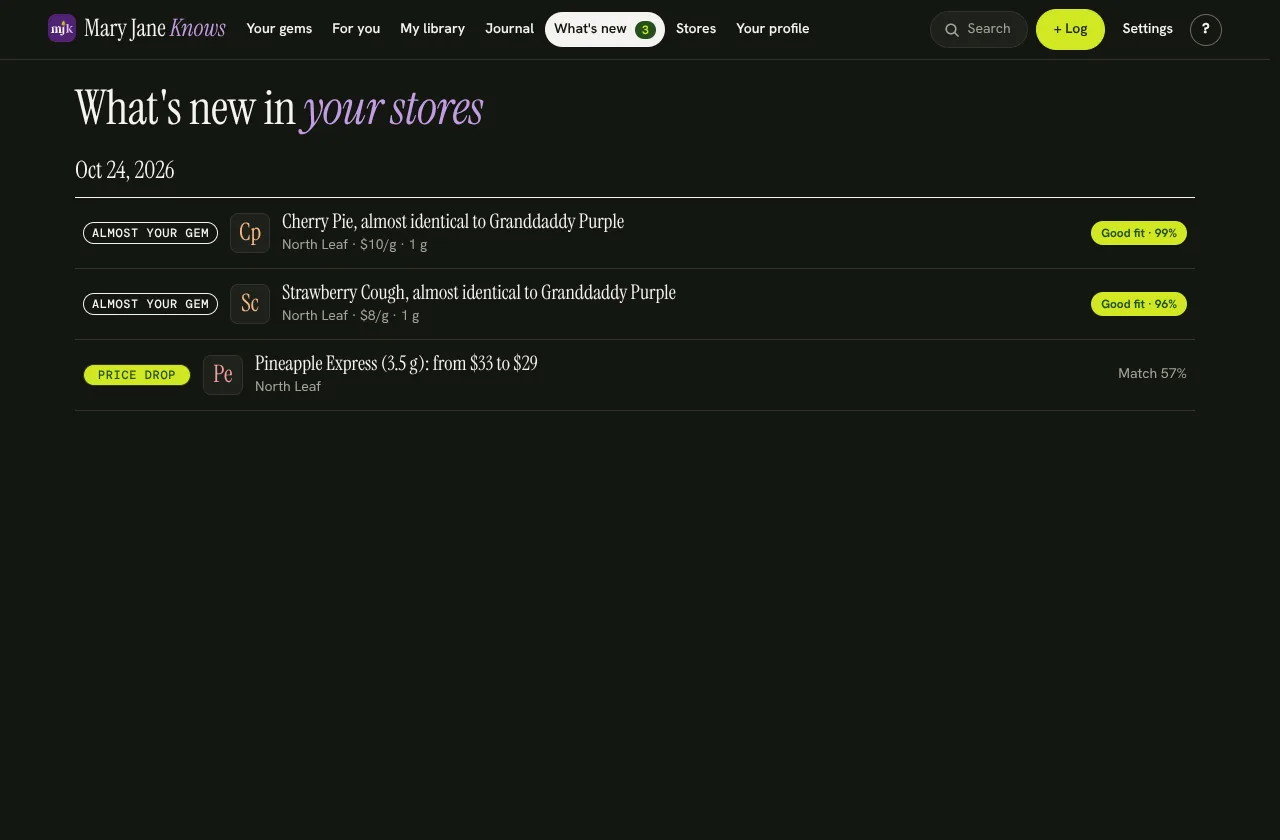
Each day is sorted: first your gems and those that are Almost your gem, then what fits you and what’s in your library, and the rest last.
Notifications
With the full version, the app sends you a system notification when, in a check, a flower that fits you, is in your library or is your gem (or almost) arrives, comes back or drops in price. They arrive even with the window closed, as long as the app stays in the tray.
15. The label
The label is a strain’s card to stick on the jar. It opens with Label on the strain’s page or on a flower’s sheet. It’s part of the full version.
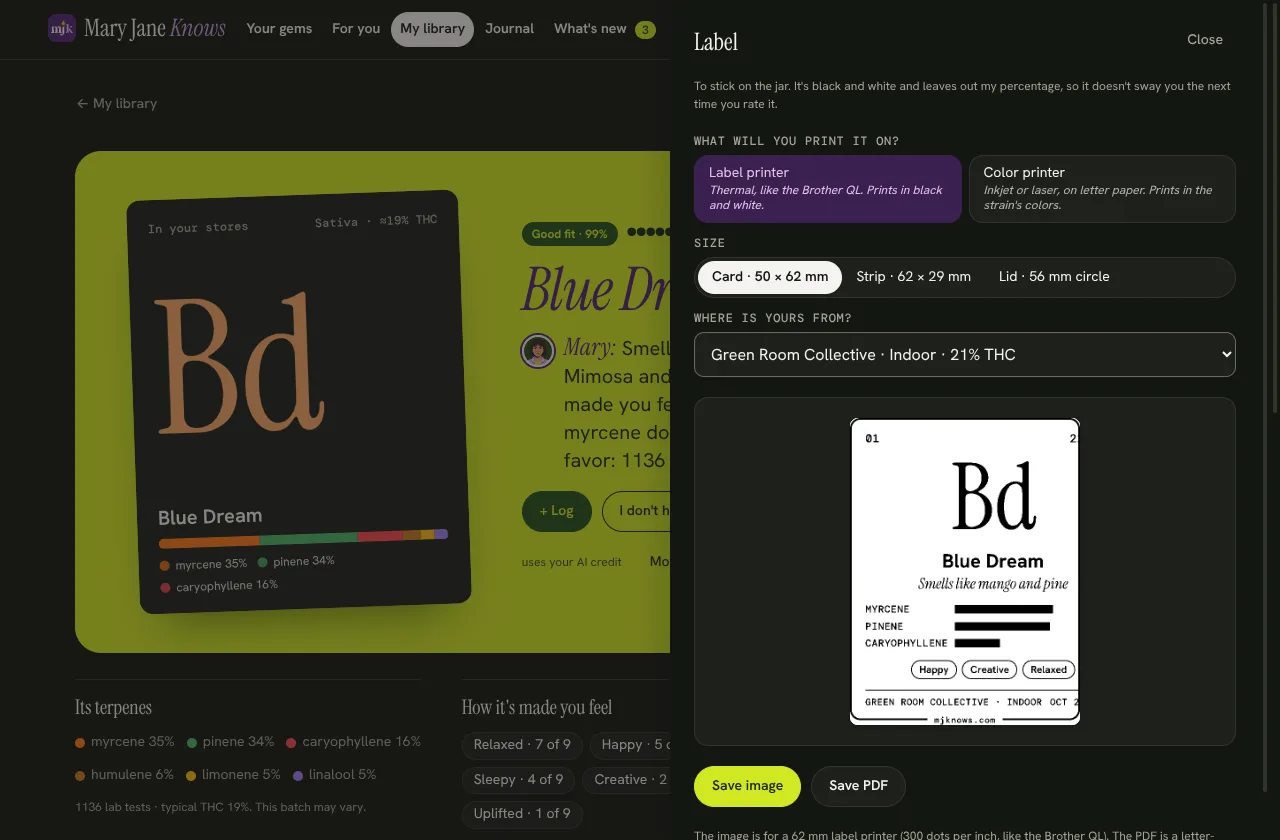
- What will you print it on? Label printer (thermal, like the Brother QL; prints in black and white) or Color printer (inkjet or laser, on letter paper; prints in the strain’s colors).
- Size: Card of 50 × 62 mm, Strip of 62 × 29 mm or Lid, a 56 mm circle.
- Where is yours from? If you bought it at more than one store, pick which; the THC and the date come from there.
It has: its letters, the name, its number in your library, THC, aroma, its three highest terpenes, what you logged that you felt, the store, the date and mjknows.com.
It doesn’t have the percentage or your stars, because seeing them on the jar sways your next rating. Nor indica, sativa or hybrid: they don’t predict the flower’s chemistry, and people tend to feel what the label tells them they’ll feel. Nor the price.
Save image is for the 62 mm label printer. Save PDF is a letter-size sheet with the label at actual size: print it at 100%, without fitting to page, and cut along the dotted line.
16. Settings
| Section | What’s there |
|---|---|
| Stores | Your stores, their currency, removing one and adding another. See Your stores. |
| AI connection | The connected service, changing it and how much it spends on its own. See Connect the AI. |
| Background | Keep checking with the window closed (in the tray) and open at login. |
| Keyboard | Single-key shortcuts (N and /). Turn them off if you use voice dictation or trigger them by accident. |
| Your data | How many strains Mary knows and where their data comes from, and the backup. See Your data. |
| Idioma · Language | Spanish or English. It changes the app, the notifications and what Mary writes. |
| Your license | Your plan and where to paste the license. See Free, trial and license. |
| Manual | This manual. |
| About | The version, the lab index (how many strains, from when and from which sources) and whether to look for a newer one once a day. |
Text size changes with Ctrl++, Ctrl+− and Ctrl+0, and the app remembers it.
17. Free, trial and license
| Trial (14 days) | Free | With license | |
|---|---|---|---|
| Stores | All | One, with 50 flowers (you can change it once every 3 months) | All, with all their flower |
| Checks | Every 6 hours | When you open the app or with Check now | Every 6 hours |
| Your profile, journal, % and “Good fit” | Yes | Yes | Yes |
| Search the index | Yes | Yes | Yes |
| Notifications | Yes | No | Yes |
| AI: research and Have Mary explain it | Yes | No | Yes |
| Jar label | Yes | No | Yes |
| Up-to-date lab index | No | No | Yes |
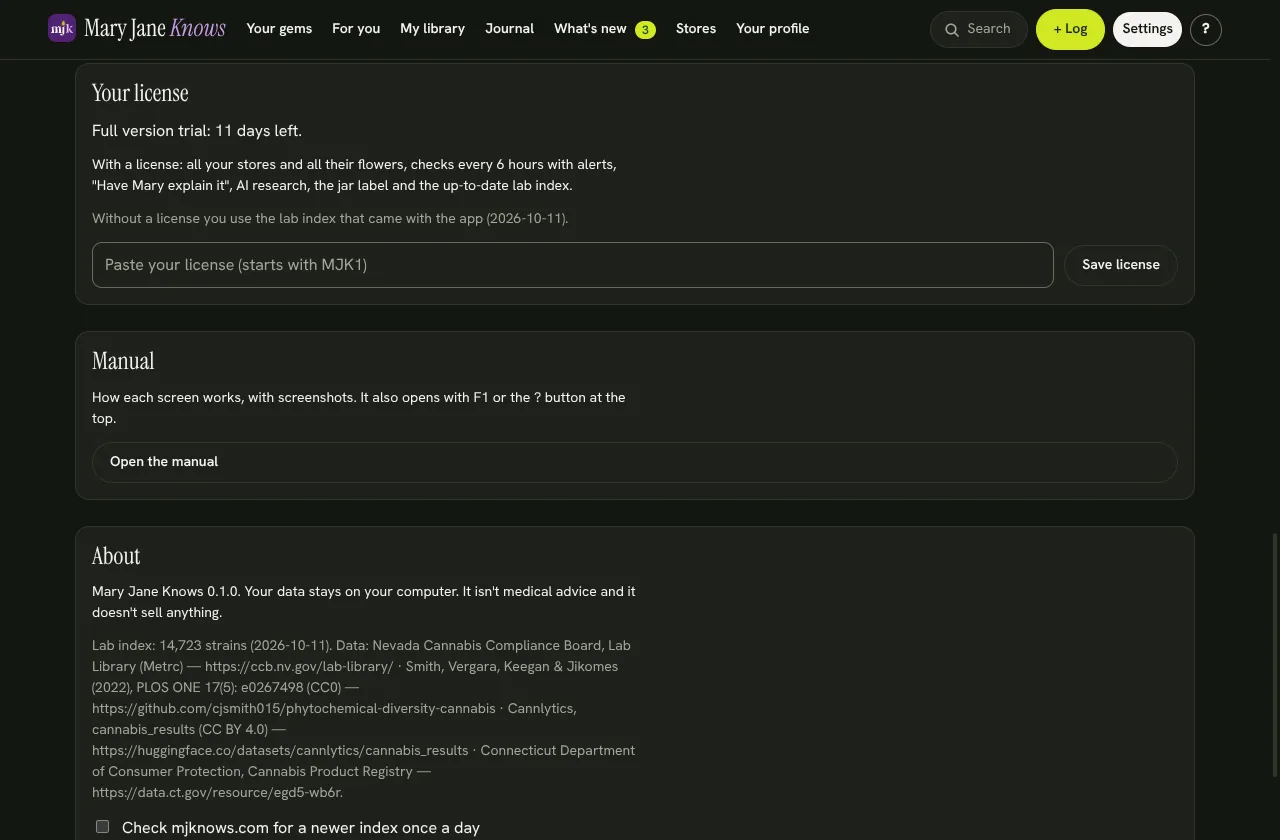
- The trial starts the first time you open the app and lasts 14 days. In the last 3, For you reminds you.
- When the trial ends nothing is deleted: what isn’t in the free version is only hidden, and it comes back with the license. In a store, the app tells you how many flowers you don’t see and how many of those fit you.
- The license starts with
MJK1. Paste it whole in Settings → Your license and choose Save license. You can remove it from one computer and paste it on another.
18. Your data
Everything lives on your computer: your profile, your stores, your library, your journal and what the AI researched. The app has no accounts and no server with your data.
The only things that go out:
- To the AI, if you connected it: strain and product names, store pages and, when Mary explains, your terpene profile and what you logged. Never your name or your keys. If you turn on Use free models, that goes to providers that may keep it and train with it.
- To mjknows.com, once a day: the app asks whether there’s a newer index and, if you have a license, sends it to download it. Never your profile, your stores or anything of yours.
- To your stores: the app reads their pages, as your browser would.
The backup
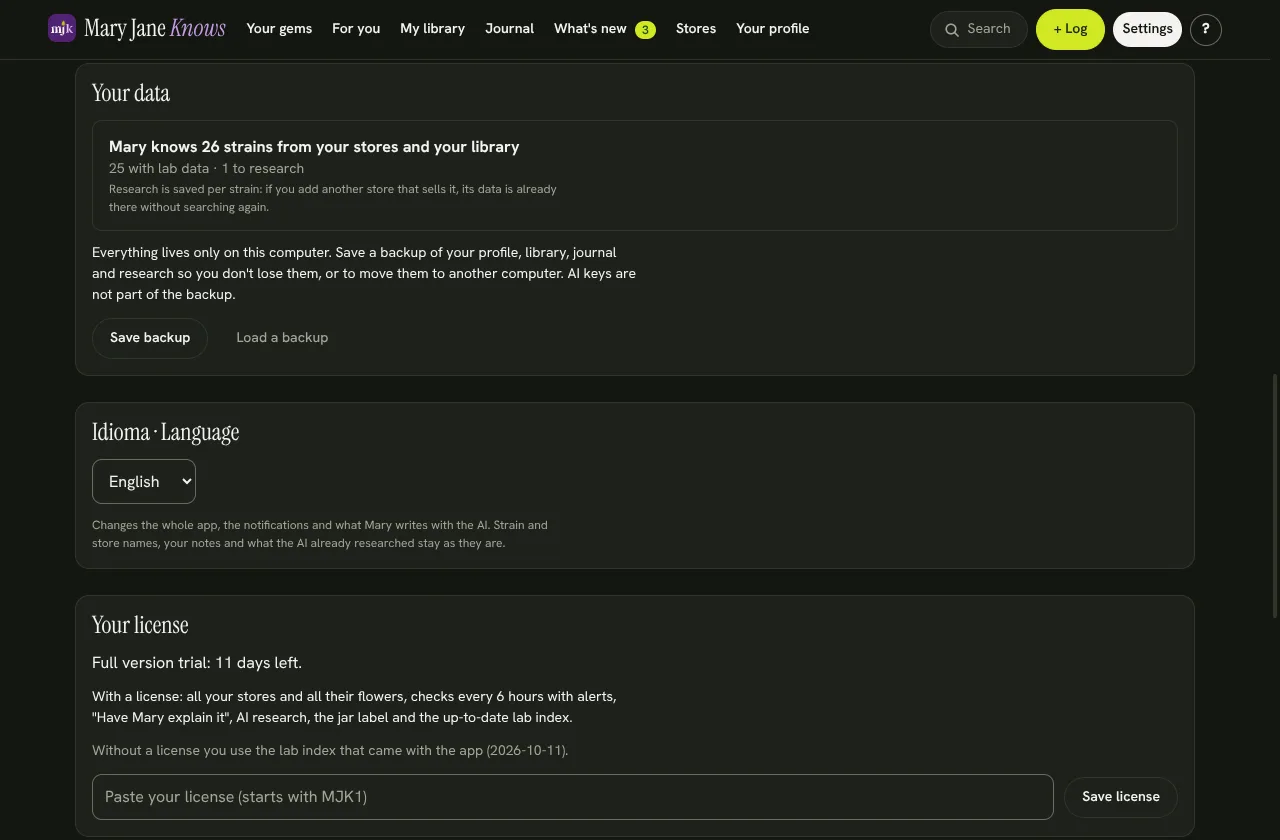
In Settings → Your data:
- Save backup saves a file with your profile, your library, your journal, what was researched, your strain corrections and your stores (without their flowers; they’re read again). It’s for not losing anything or moving it to another computer.
- Load a backup replaces what you have with what’s in the file. First it tells you how many strains and entries it has, and asks you to confirm.
The backup doesn’t include your AI connection or its keys, or your license. That way you can share it without giving anything away. Your keys are stored encrypted in your system keychain.
19. Shortcuts
| Key | What it does |
|---|---|
| F1 | Opens this manual |
| Ctrl+K or / | Search |
| N | Log |
| ← → | In For you, the previous or next flower |
| ↓ ↑ and Enter | In Search, move through the results and open one |
| 1 to 5 | When logging, the rating |
| Ctrl+Enter | When logging, save |
| Ctrl+Z | Undo the last thing (deleting an entry, moving or removing a strain) while the notice is showing |
| Esc | Close the stores menu, a sheet or this manual |
| Ctrl++ − 0 | Bigger, smaller or normal text |
On Mac, Cmd instead of Ctrl. N and / are turned off in Settings → Keyboard.
20. If something goes wrong
I couldn’t read that store
- Paste the store’s address or the link to its online menu, not a social network or a directory.
- Some sites don’t allow being read.
- If the store doesn’t publish its products in an orderly way, the app can read it with the AI connected.
A check failed
The store’s page says what happened and when. The flowers you see are from the last good read. The app tries again in about 30 minutes; you can also use Check now.
Lots of flowers say “No data”
They’re strains that aren’t in the lab index and whose store doesn’t publish their terpenes. With the AI connected, Research N with no data (in the store) or the button on the strain’s page researches them. A blend with no strain, like “THCa Smalls”, can’t be compared.
The app got the strain wrong
On the flower’s sheet, Not strain? Correct it. The app remembers your correction.
The AI isn’t responding
- “Your account has no balance” (OpenRouter): add credits. Meanwhile, explaining and reading stores keep going with free models.
- “The key doesn’t work or was deleted”: connect it again in Settings → AI connection.
- “The service says to wait a bit”: it’s the service’s rate limit. The app waits and continues on its own.
- Linux with no secure keychain: the app can’t store the key encrypted. Use your service’s environment variable (for example,
ANTHROPIC_API_KEY).
A store stopped being read
If a store starts selling other drugs besides cannabis, the app stops reading it, stops showing its flowers and lets you know. You can remove it in Settings.
None of the above
Write to us at [email protected] with what happened and, if you can, a screenshot.